Описание
WebDisplays Mod(This mod is ported from ds58 and Lyzantra's WebDisplays(forge)and yhe original mod WebDisplays is by the authors ds58 and Lyzantra!!! ) - Implemented Features
🖥️ Core Display
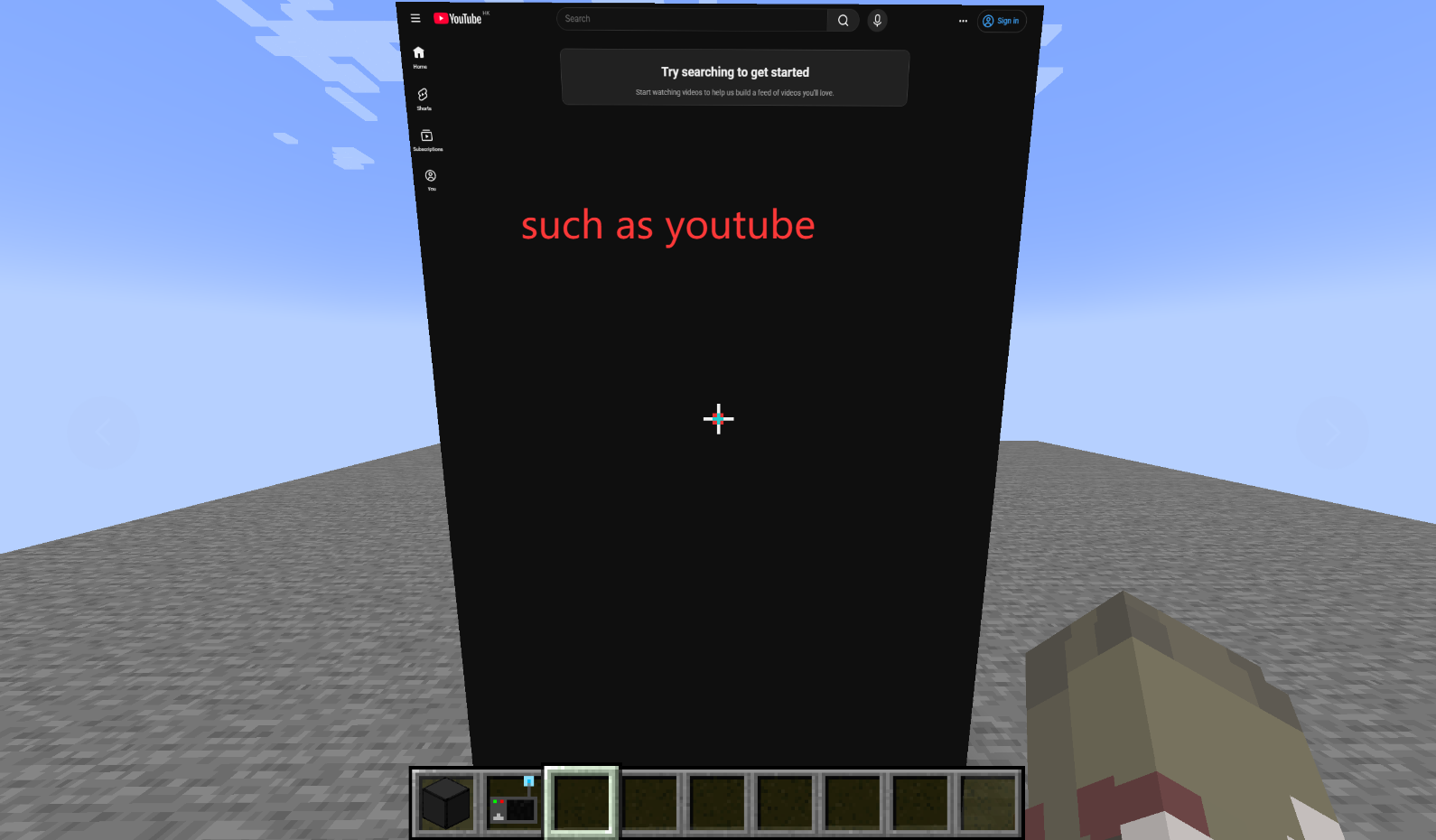
Web Screen Block - Placeable in-world block that displays web pages via MCEF (Chromium Embedded Framework)
Multiplayer Support - Screen data (URL, size, rotation) synced to all players; each player loads pages locally via their own MCEF instance
Texture Broadcasting (Experimental) - Screen owner's browser texture captured and broadcast to other players every 500ms for identical content
📦 Blocks & Items
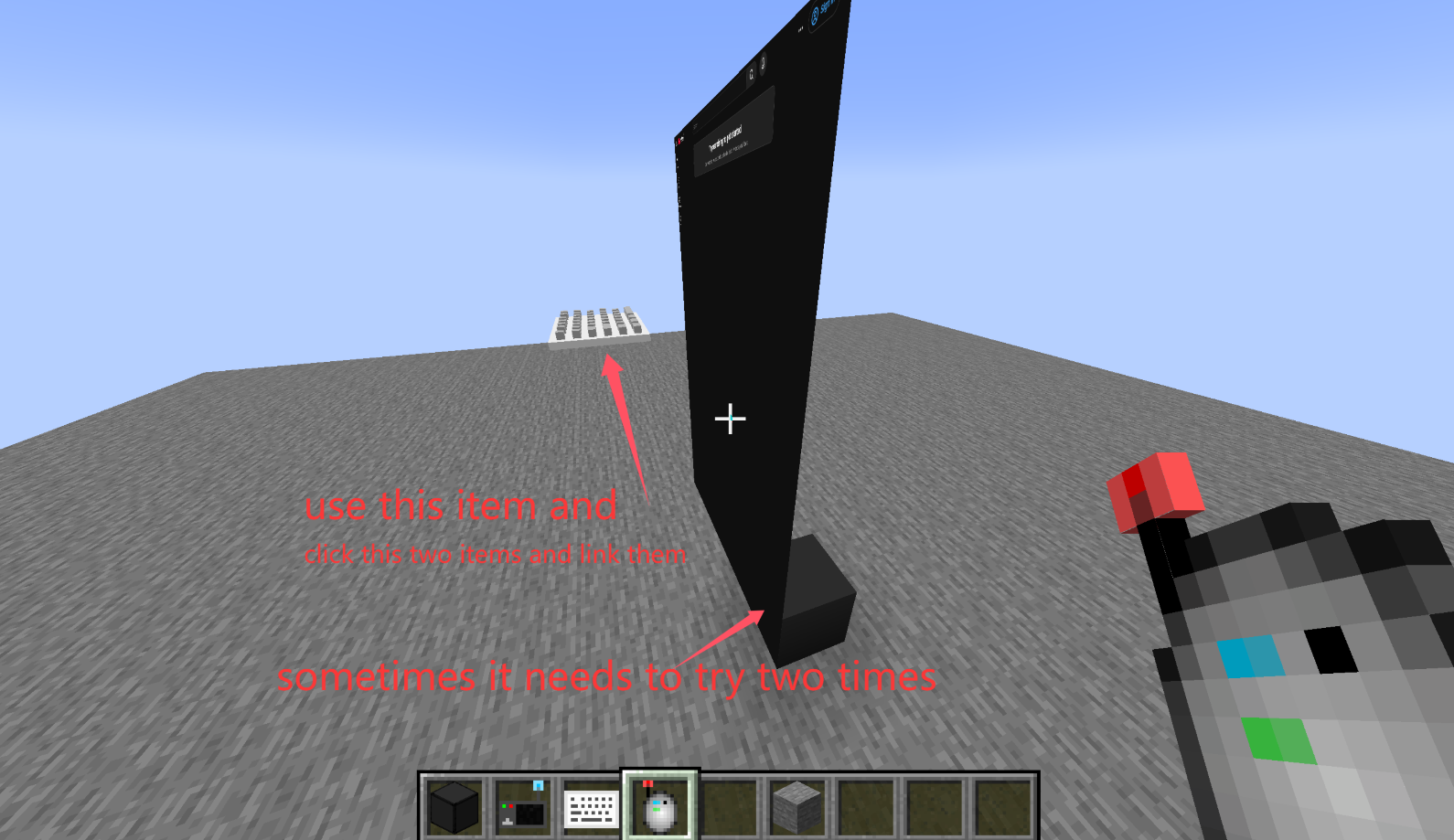
Keyboard Blocks (Left & Right) - Right-click to type on screen, linkable to screens using Linking Tool
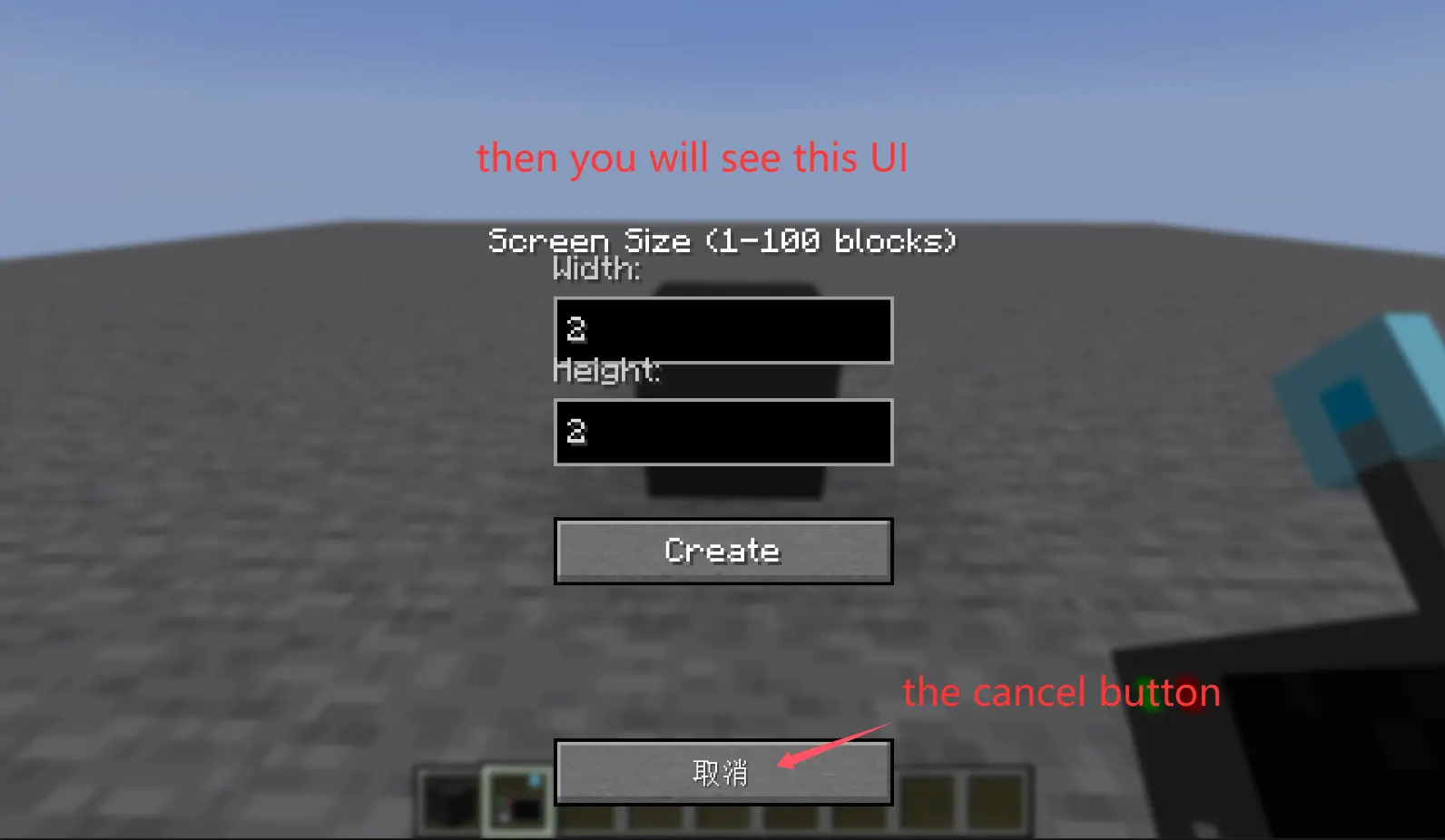
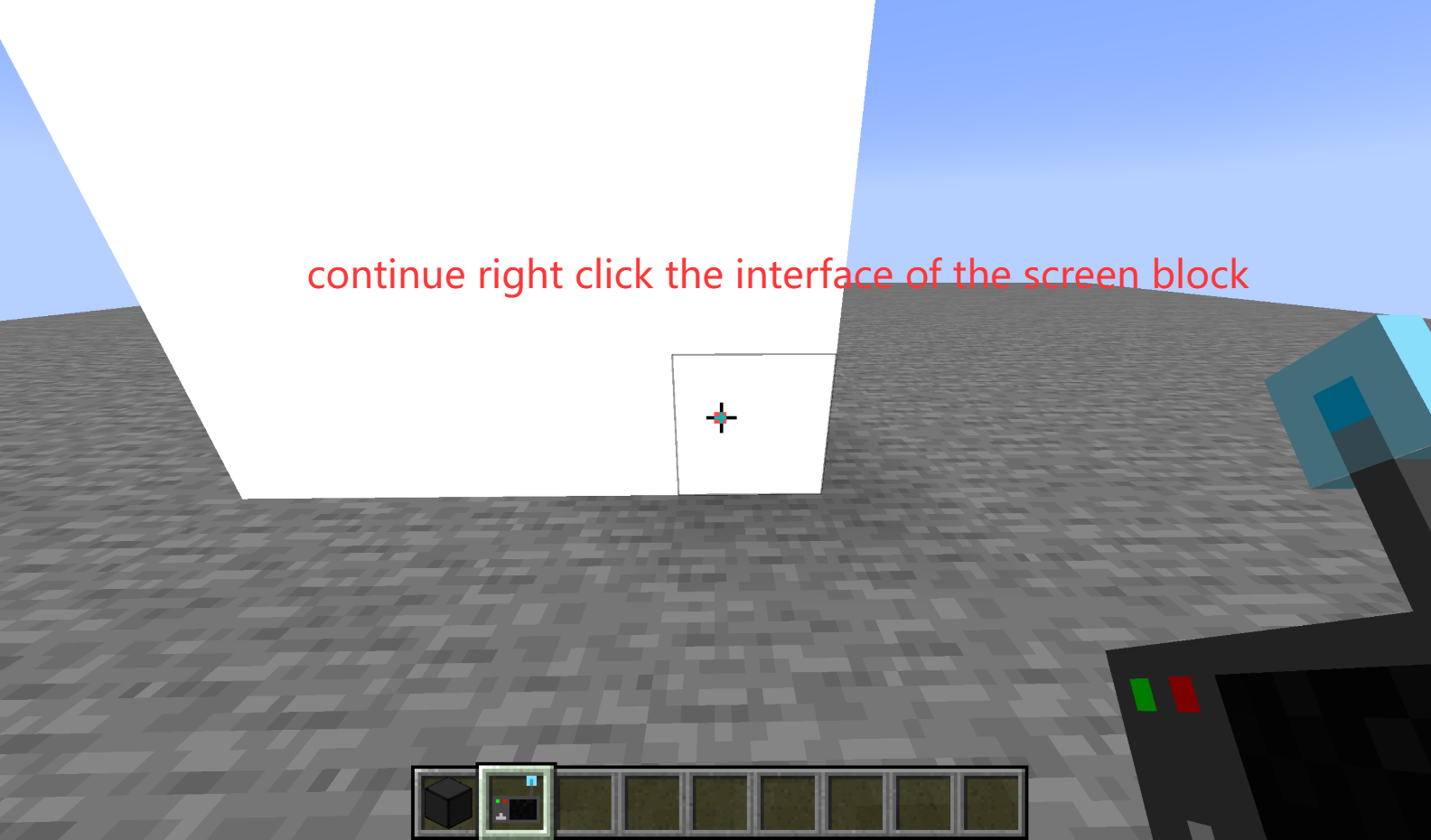
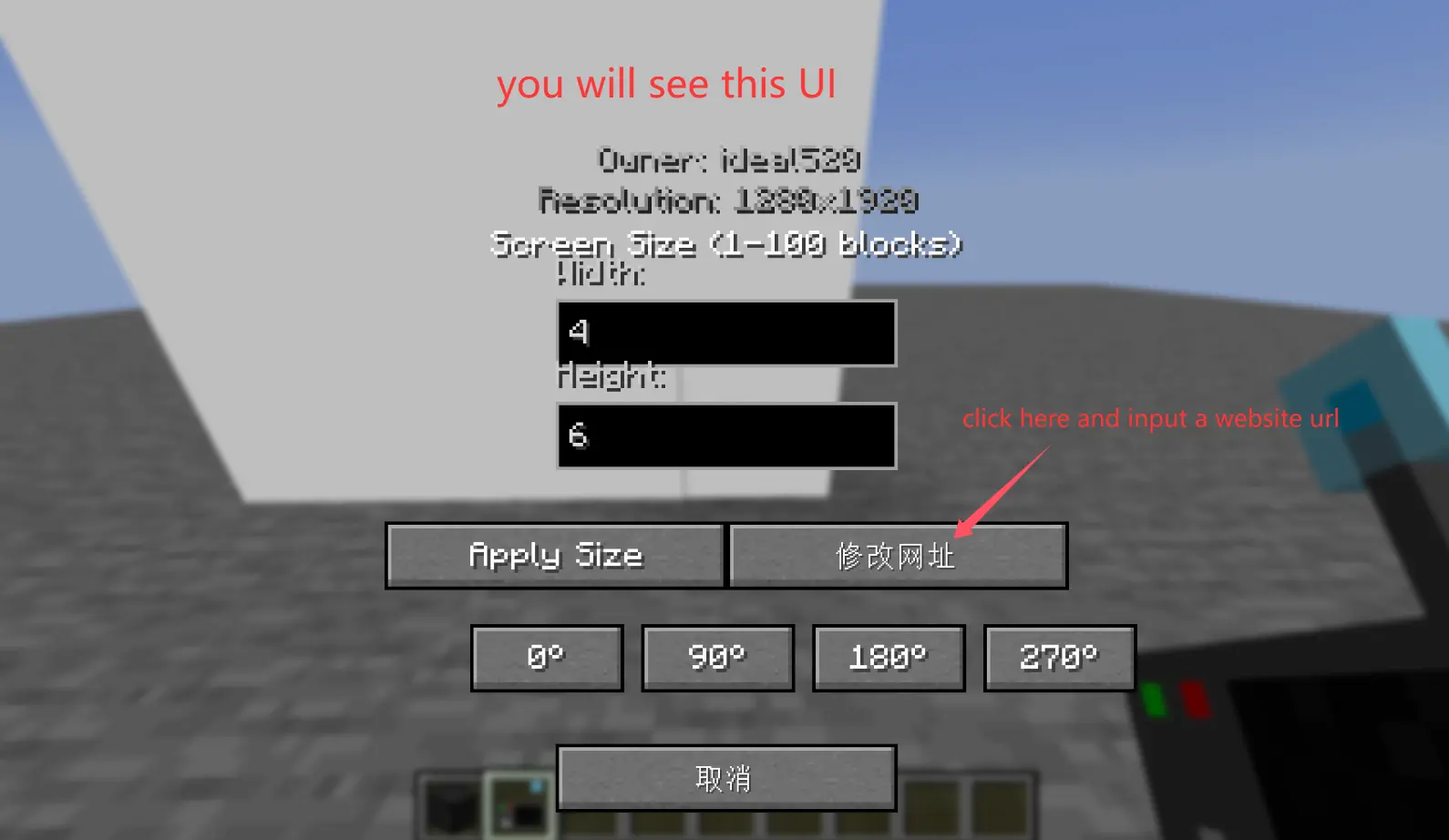
Screen Configurator - Right-click screen to open settings GUI for creating/removing screen faces, setting URL, resizing, and rotating
Linking Tool - Click screen to select, then click keyboard to link them together
Creative Tab - All items grouped under Web Displays creative tab
🎮 Interaction
Mouse Interaction - Raycast-based cursor tracking for clicking and scrolling on screen surfaces (Tab to toggle cursor)
Keyboard Input GUI - Dedicated input screen for typing on browser pages
🌐 Network
Network Sync - Custom payload system for screen actions (add/remove/resize/rotate/URL changes)
⚙️ Rendering & Stability
OpenGL State Protection - Mixin to reset GL_UNPACK_ROW_LENGTH/SKIP_PIXELS/SKIP_ROWS after MCEF texture updates, preventing visual corruption
Pixel Store Reset - Mixin to reset GL pixel store state after MCEF texture updates to prevent rendering artifacts
💻 Commands
/screen Command - Give items via command:
/screen screen
/screen configurator
/screen linker
/screen kb_left
/screen kb_right
!!!!!!!!!!!!!!!!!!!!!!!!!!!!!!!!!!!!!!!!!!!!!!!!!!!!!!!!!!!!!!!!!!!!!!!!!!!!!!!!!!!!!!!!!!!!!!!
How to use?
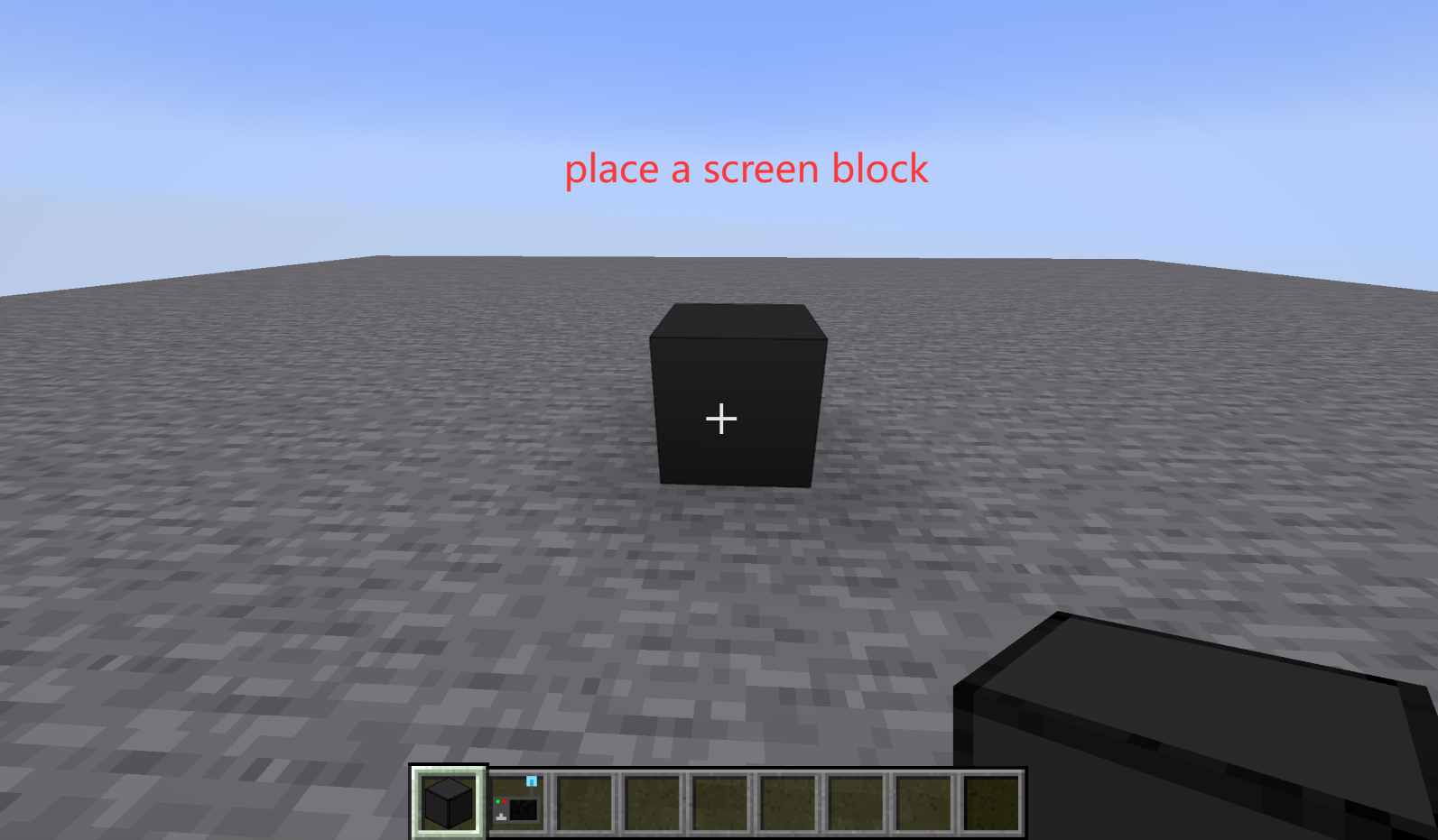
Use the /screen command to obtain the screen block, configurator, connector, and keyboard.
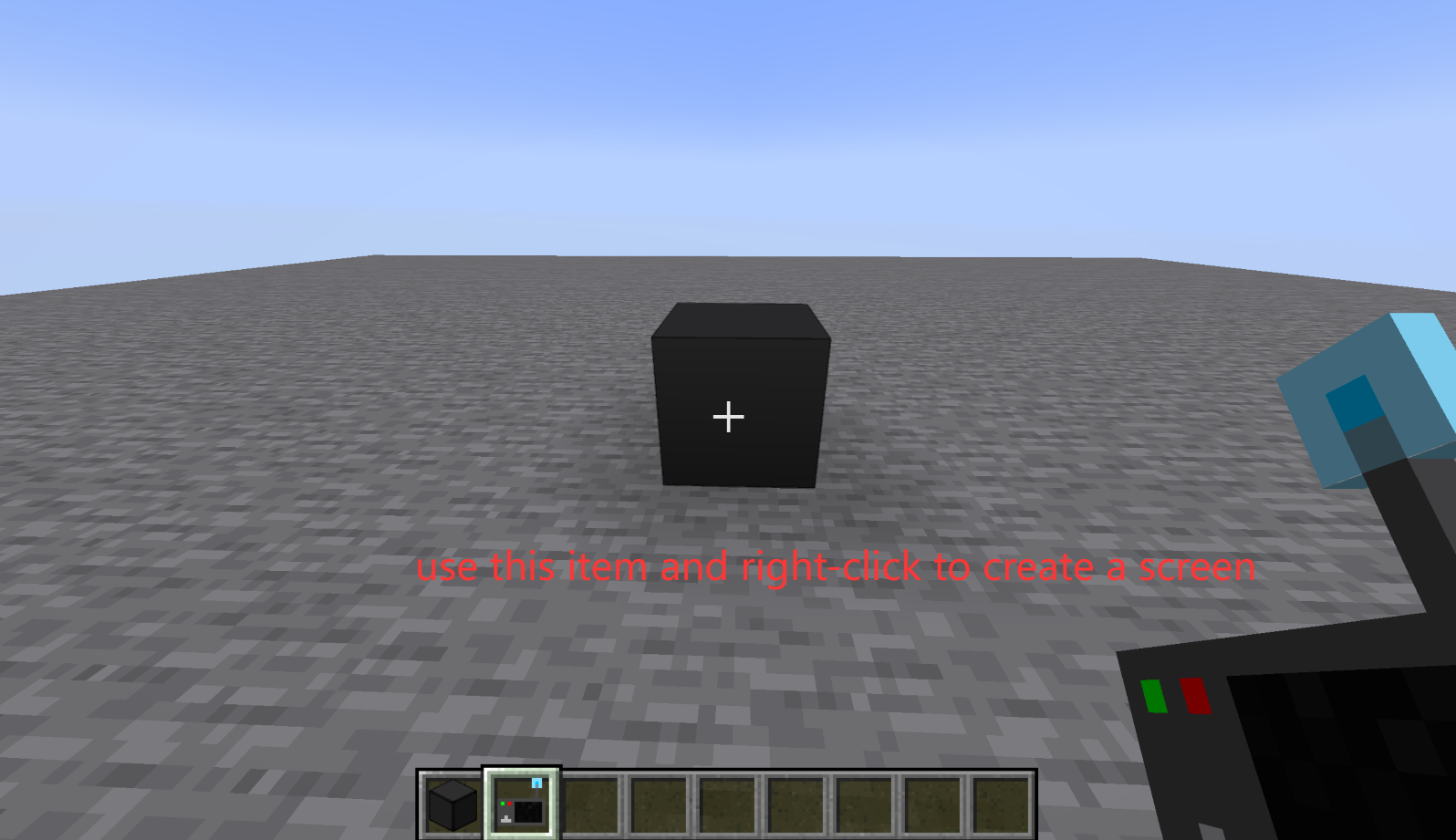
Place the screen block. Right-click the screen block with the configurator to create a screen. Right-click again to adjust the screen ratio, URL, etc.
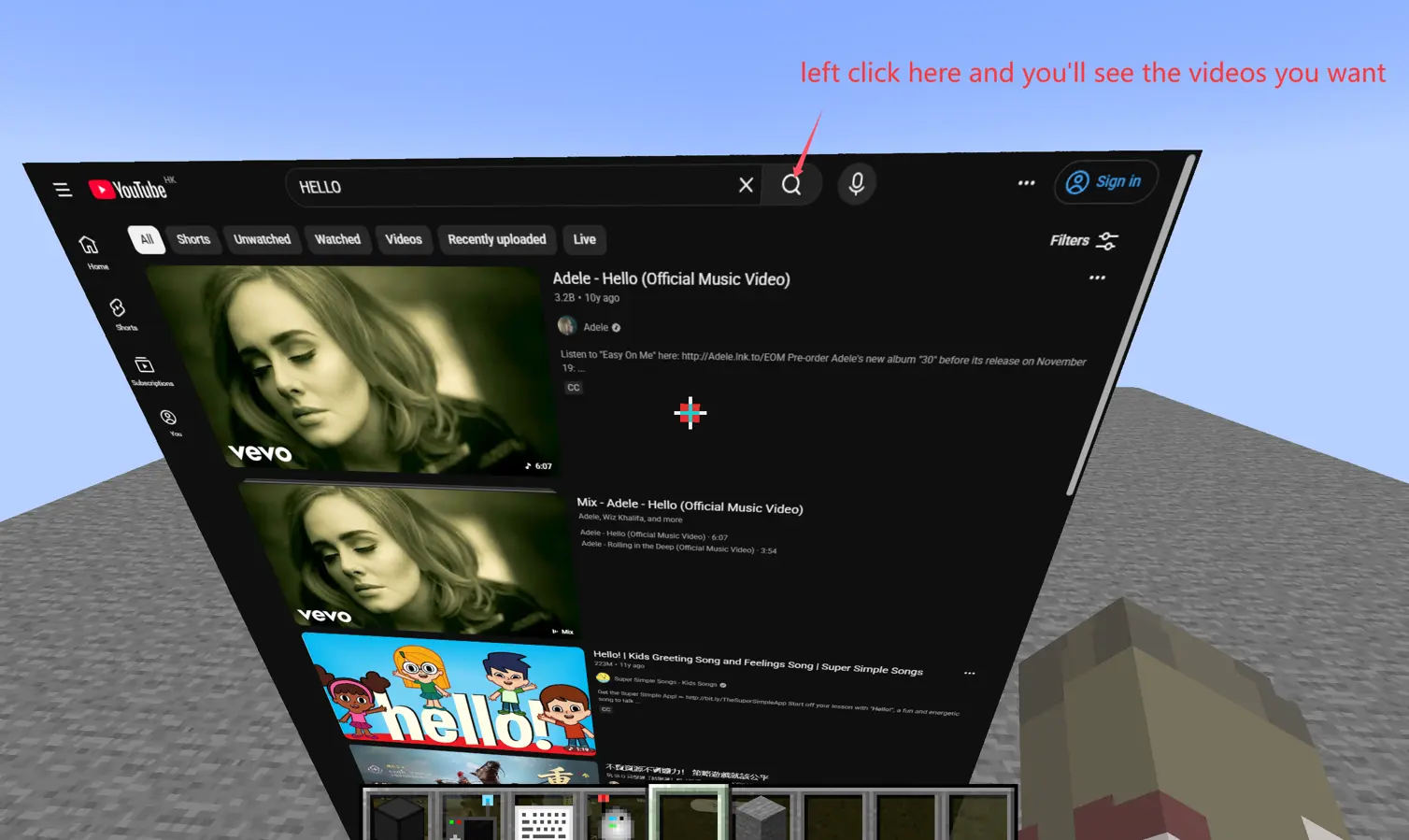
Left-click functions the same as a left-click in a normal browser.
Shift + scroll wheel functions the same as scrolling in a normal browser.
Ctrl + scroll wheel functions the same as zooming in and out in a normal browser.
Press Tab to hide the red pointer.
Press F6 to hide the screen.
Place the keyboard. Use the connector to right-click the screen block and the keyboard respectively to connect them.
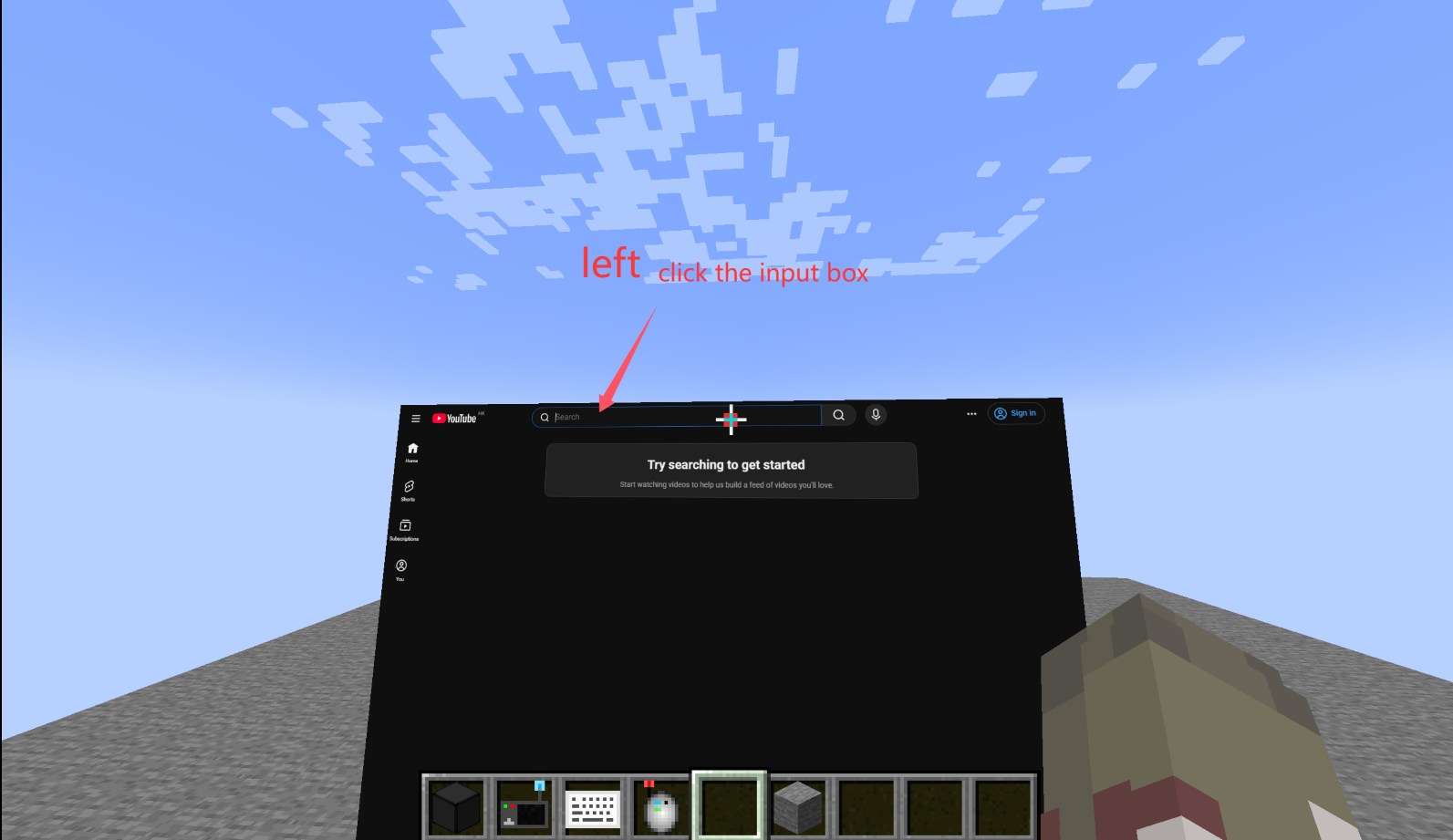
Left-click on the input field on the screen to enter input mode.
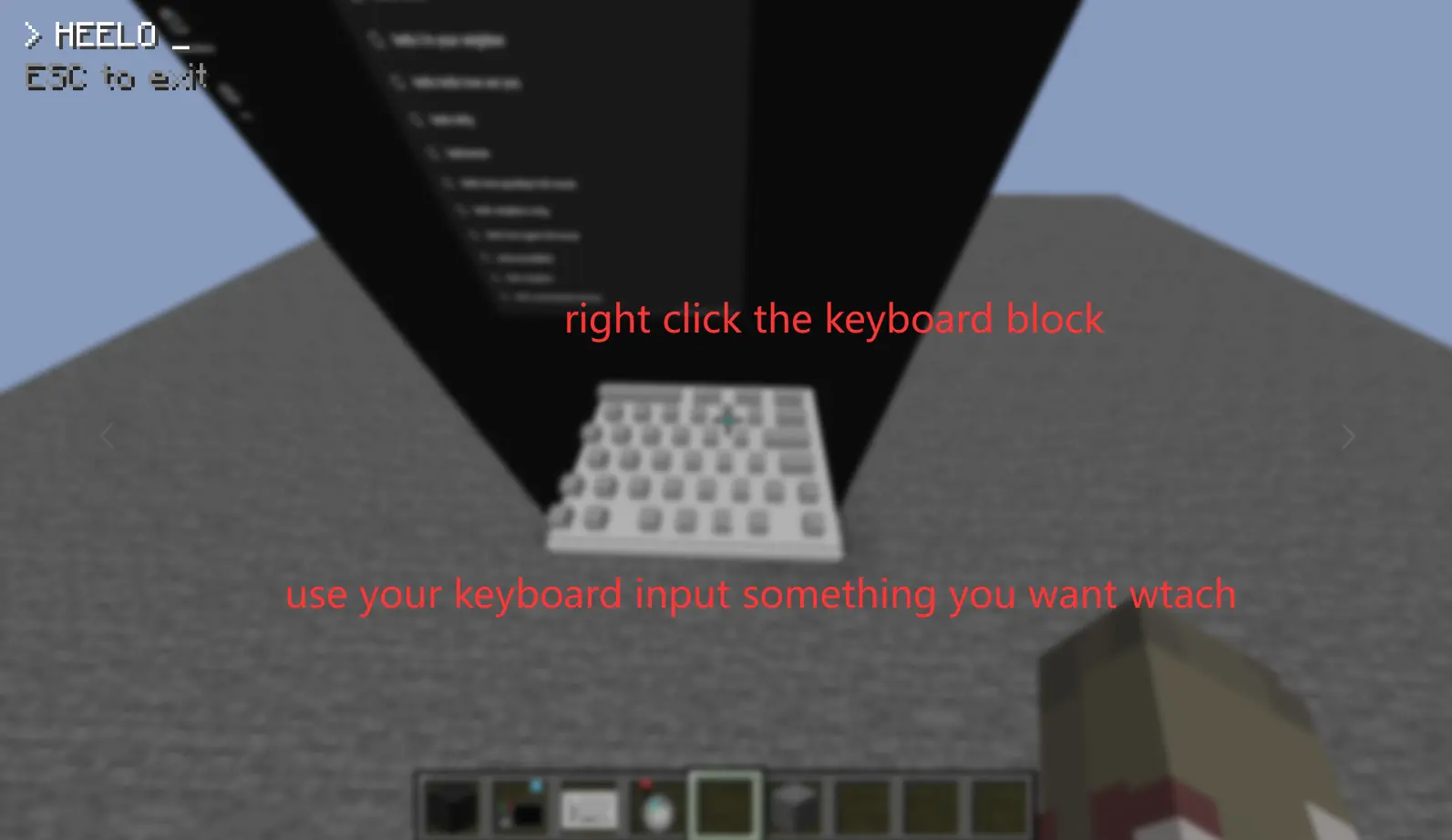
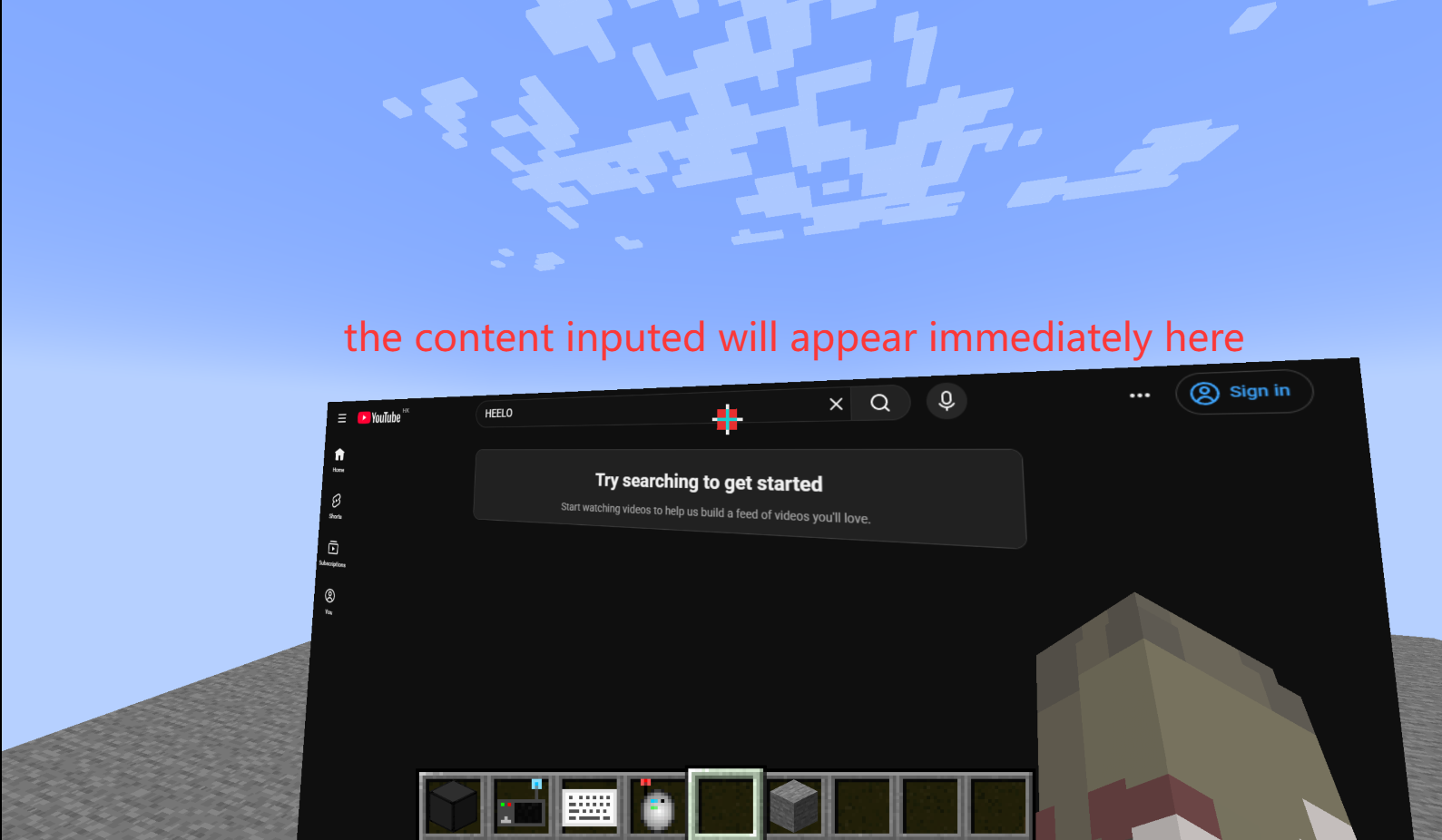
Right-click on the keyboard to type as you would in a normal browser (directly mapping the input content to the browser).
Press Esc to exit.
right click the screen block first!