
Описание
**Based on [Slideshow(Fabric)](https://modrinth.com/mod/slideshow-fabric)**
Slideshow is a Minecraft mod that adds a Slideshow Projector block. This block can project online images (including GIF's) into the world.
------
This project has more functions:
- Load image from local resource packs.
- Export Image Items and put them in an container block under a Projector and make it load image from them.
- Switch images with a Flipper to make it like a genuine slide show.
- WebP support.
## How to use a Projector?
- In Creative Inventory, **Projector** and **Flipper** items are located in “Tools” or “Tools and Utilities” tab.
- Only Creative mode players with [permission level](https://minecraft.wiki/w/Permission_level) of 2 can use a **Projector**.
- Notice that a **Projector** has 6 orientations.
1. Place a **Projector**.
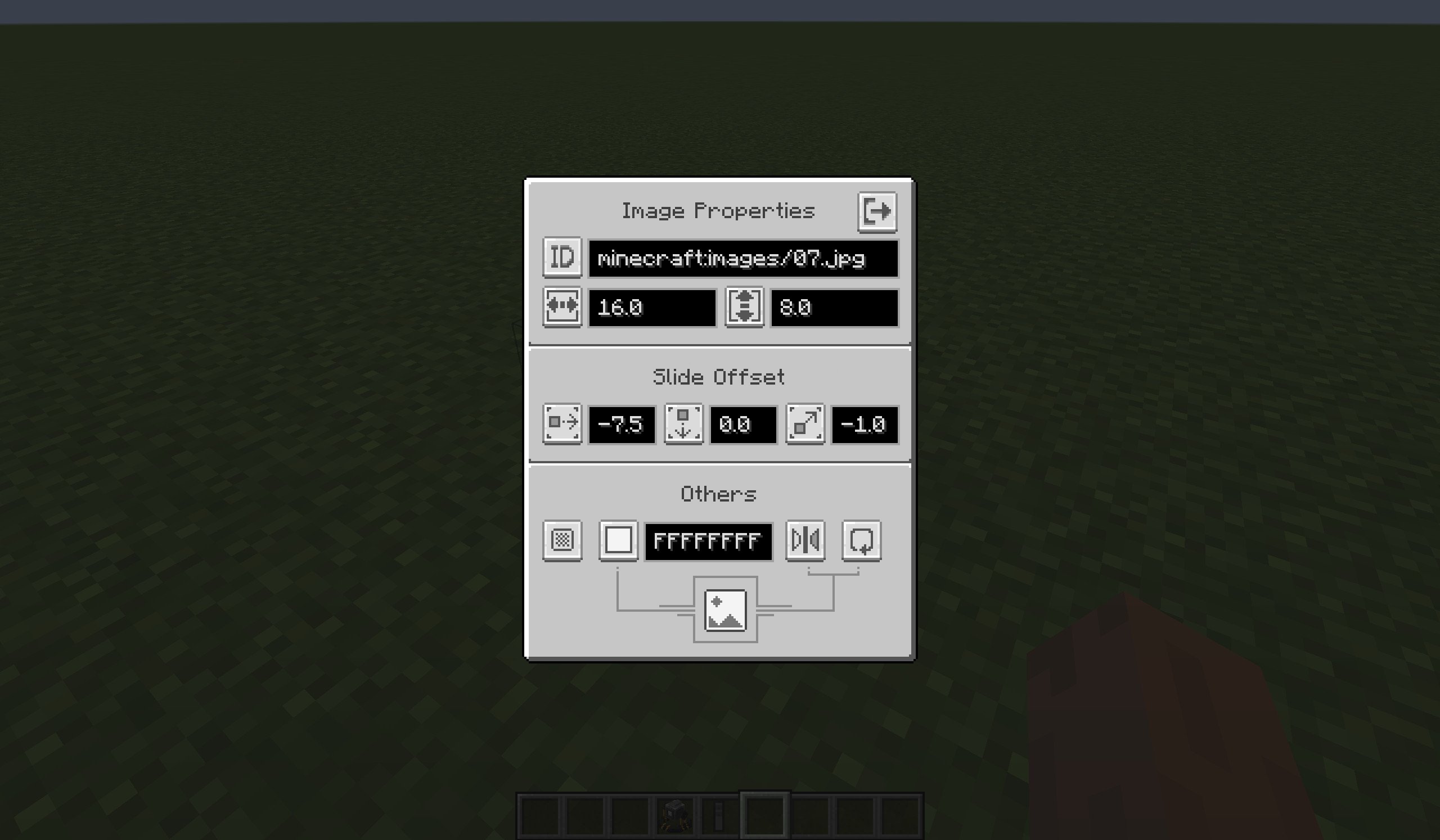
2. Right-click this **Projector** then you can configure the **Image Properties** in the **Projector Screen**. New properties will only be applied when you close the **Projector Screen**.
3. Use upper-left button to switch modes of the **Projector**, then enter the attribute in the input field on the right (see the table below):
4. The descriptions of each mode are as follows:
| Mode | Description | Enter in the input field |
| ------------------- | ------------------------------------------------------------ | ------------------------------------------------------------ |
| **URL** | Fetch ONE online image from the Internet and render it. | The URL of the Image. |
| **ID** | Fetch ONE local image from the game resoureces and render it.Other players can not see this image if they had no this image in their game resources. | The [ID](https://minecraft.wiki/w/Resource_location) of the Image.(e.g. `minecraft:images/01.png`) |
| **Container Block** | Read Image items in the specified Container and render them.See more infomation at below. | The position of the Container Block.Default is the block under it.Use ^ to indicate relative position.(e.g. `1 5 13`)(e.g. `^ ^1 ^1`) |
## How to use Container Block mode?
1. Get **Image Item** through:
- the **Export** button in **Projector Screen** (in **URL** or **ID** mode).
- `/image` command (requires [permission level](https://minecraft.wiki/w/Permission_level) of 2).
2. Put **Image Item**s in a container block (like Chest).
3. Switch to **Container Block** mode in **Projector Screen**, and enter the position of the container block.
4. Close the **Projector Screen**, the **Projector** render the first image in the container block.
5. Get a **Flipper Item** (requires survival or creative mode), use it on the **Projector** to bind them. Then you can operatethe **Projector** using this **Flipper Item**:
- Left click(Attack, Break Key): switch to the previous image.
- Right click(Use, Interact Key): switch to the next image.
- Shift + Right click(Sneak + Use, Interact Key): switch to the first image.
6. If you have [permission level](https://minecraft.wiki/w/Permission_level) of 2, you can also use command `/projector` to flip a projector.
## Multi-screen
A projector can hava multi screens to show same images, while their positions, angles and sizes are different.
**Note**: This new feature in 1.1.0 make it a little incompatible with older versions.
## Configs
### Client-side
Path: `/config/slideshow.json`.
You can specify:
- proxy to get image from Internet.
- image's view distance.
Client-side config is loaded when the client started or it reloaded resources.
### Server-side
Path: `/saves//config/slideshow.json`.
(If dedicated server: `/world/config/slideshow.json`)
You can specify: permisson levels of some behavior or the commands.
Server-side config is loaded when the server started(world loaded) or it reloaded resources.