Описание

# Salt's Anti Aliasing
Salt's Anti Aliasing brings modern anti-aliasing, supersampling, sharpening, upscaling, and frame-generation options directly into Minecraft.
### Disclaimer: DLSS is not functional in the current release of the mod
Whether you want cleaner block edges, less shimmering in the distance, a sharper native-resolution image, or better performance through upscaling, the mod gives you the tools to tune Minecraft for your own hardware and preferences.
Everything is controlled through an in-game settings menu with clear descriptions, mode-specific controls, and immediate visual feedback.
## Main Features
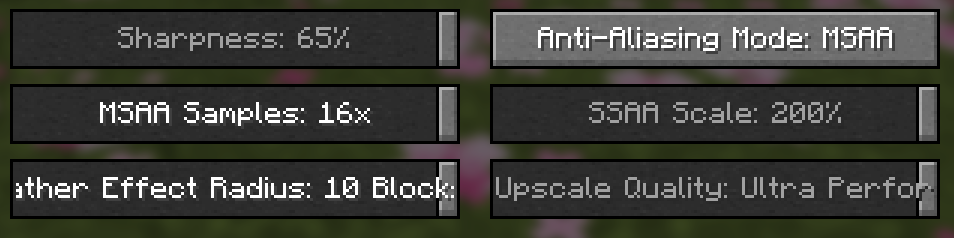
- A complete anti-aliasing menu inside Minecraft’s Video Settings
- A matching configuration screen through Mod Menu
- Optional Sodium settings integration
- Lightweight post-process anti-aliasing
- Native Vulkan multisampling
- Temporal anti-aliasing and temporal upscaling
- NVIDIA DLSS Super Resolution support
- AMD FSR2 and FSR3 Super Resolution
- AMD FSR3 Frame Generation
- NIS and FSR1 spatial upscaling
- SSAA scaling from 125% through 800%
- An independent Sharpness slider available with every mode
- Mode-specific quality and sample controls
- Scrollable mode selection with wrapped descriptions
- Built-in edge-debug and benchmarking tools
The controls automatically change based on the selected mode, keeping the menu compact and showing only the settings that currently matter.
## Included Modes
### Off
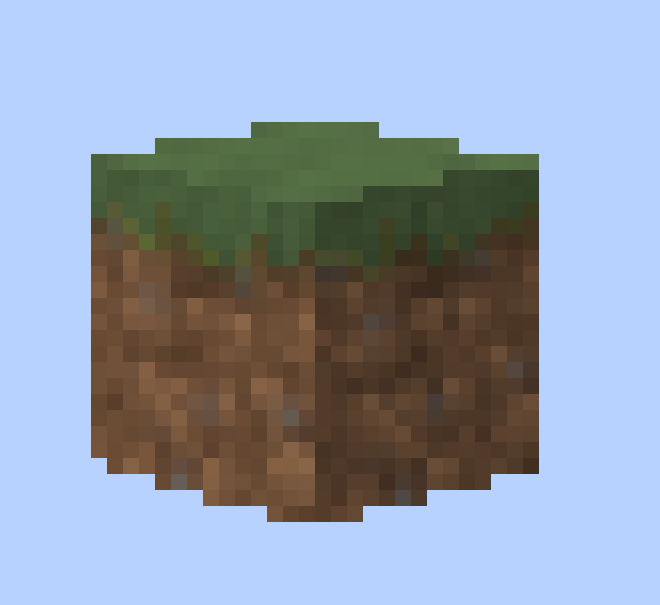
Disables anti-aliasing and upscaling. The independent Sharpness slider remains available, so it can also be used as a sharpening-only mode. Leave Sharpness at its default `0%` for an untouched image.
### FXAA
Uses the NVIDIA FXAA 3.11 Quality algorithm with a high-quality search preset. FXAA is fast and lightweight, making it a good choice when you want smoother edges with a minimal performance cost.
### SMAA
Uses the official SMAA 1x Ultra pipeline, including diagonal edge detection, crossing-edge analysis, corner handling, and reference lookup textures. SMAA generally retains more fine detail than FXAA while still being relatively inexpensive.
### MSAA
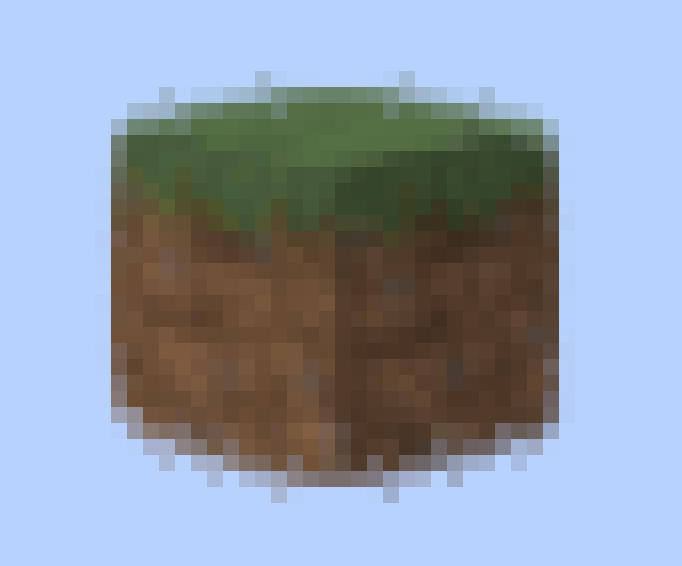
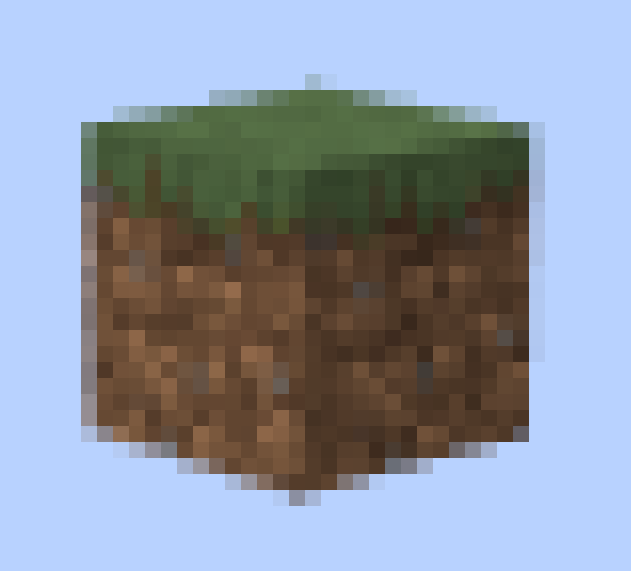
Uses native Vulkan multisampling to smooth geometry edges before the scene is resolved.
Available sample settings:
- `2x`
- `4x`
- `8x`
- `16x`
The mod automatically respects the maximum sample count supported by your GPU.
MSAA also includes an optional **Alpha to Coverage** setting. It can smooth the edges of leaves, vines, grass, and other cutout textures, but may cause distant transparent blocks to fade or stipple. It is disabled by default so Minecraft’s normal binary cutout appearance is preserved.
**MSAA is supported when Sodium is installed.**
### SSAA
Renders Minecraft above your normal resolution and downsamples the result for extremely clean and stable image quality.
Available scales range from `125%` through `800%` per axis. For reference:
- `200%` renders four times as many scene pixels as native resolution
- `400%` renders sixteen times as many
- `800%` renders sixty-four times as many
Settings above `400%` display a warning because they can heavily affect performance, consume large amounts of GPU memory, or exceed your GPU’s maximum texture size.
### TAA
Uses information from current and previous frames to reduce shimmering and stabilize thin or distant geometry.
The temporal pipeline uses motion-aware reprojection, history rejection, and neighborhood filtering to retain detail without the heavy blur often associated with basic TAA implementations.
### NIS Upscale
Uses NVIDIA Image Scaling to render the world below native resolution and scale it back up. Quality presets let you choose between image clarity and higher performance.
The independent Sharpness slider controls how much extra detail enhancement is applied afterward.
### FSR1 Upscale
Uses AMD FidelityFX Super Resolution 1 spatial upscaling for an edge-aware reconstruction of a lower-resolution scene.
It offers a good balance between performance and image quality without requiring temporal frame history.
### DLSS Super Resolution
Uses NVIDIA DLSS to reconstruct a native-resolution image from a lower internal resolution.
Available presets include:
- Quality
- Balanced
- Performance
- Ultra Performance
- Auto
DLSS requires compatible NVIDIA RTX hardware and separately provided NVIDIA Streamline/DLSS runtime files, a JNI bridge, and a valid application ID. These proprietary NVIDIA components are not bundled with the mod.
### FSR2 Super Resolution
Uses AMD FidelityFX Super Resolution 2 with temporal reconstruction, motion vectors, depth information, exposure data, and transparency-aware masks.
Quality presets range from Native AA through Ultra Performance.
### FSR3 Super Resolution
Uses AMD FidelityFX Super Resolution 3 for modern temporal upscaling without frame generation.
The implementation tracks camera movement, scene depth, exposure, and changing transparency to improve stability around water, foliage, block edges, skies, and clouds.
### FSR3 Super Resolution + Frame Generation
Combines FSR3 Super Resolution with real FidelityFX Frame Generation.
Frame Generation creates interpolated world frames between Minecraft’s rendered frames for smoother perceived motion. The HUD is handled separately so menus, crosshairs, and interface elements are not duplicated inside generated frames.
This mode is only available when the required FidelityFX Vulkan frame-generation swapchain initializes successfully.
## Independent Sharpness Control
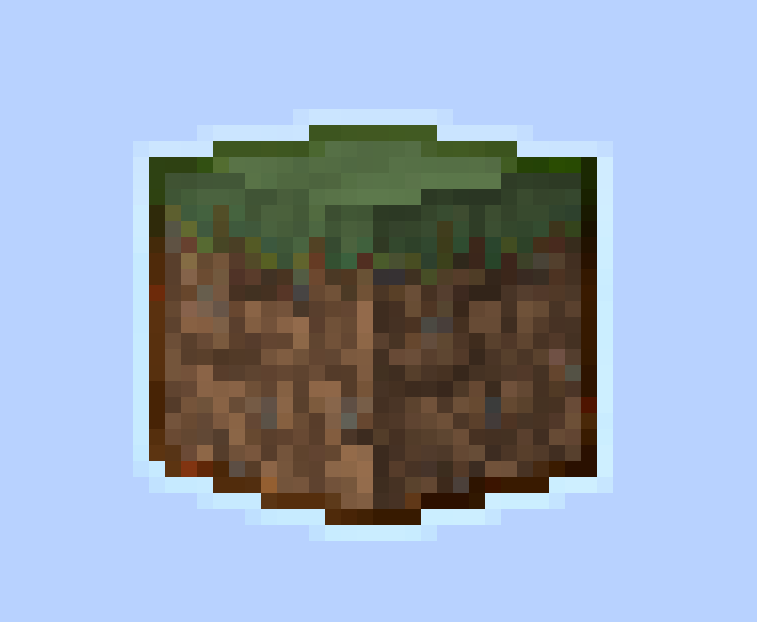
Sharpness is no longer tied to a special combined mode. A `0–100%` Sharpness slider is available with every anti-aliasing and upscaling option, including `Off`.
The default is `0%`. Higher values can restore crispness after temporal filtering or upscaling, but extreme settings may produce halos or overly crunchy textures.
## Quality Presets
Upscaling modes provide dedicated quality controls:
- NIS and FSR1 spatial upscale quality
- DLSS quality presets
- FSR2 and FSR3 scaling presets
- FSR Native AA for full-resolution temporal anti-aliasing
This makes it easy to prioritize image quality, performance, or a balance between the two.
## A Better Settings Menu
The anti-aliasing selector opens as a scrollable popup above Minecraft’s other settings.
- The list always renders above surrounding buttons
- The scrollbar can be clicked and dragged
- Controls behind the popup cannot be accidentally highlighted or clicked
- Long descriptions wrap across multiple lines
- Unsupported modes explain why they are unavailable
- Changing modes automatically displays the correct controls
- Your scroll position is preserved when the screen refreshes
The built-in Video Settings page and Mod Menu configuration screen use the same controls, so both interfaces remain consistent.
## Image Examples
### Off
### Independent Sharpness
### FXAA
### 16x MSAA
## Built-In Debug Tools
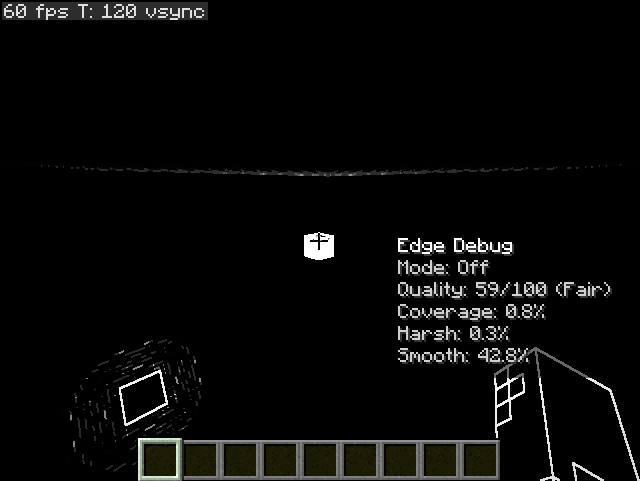
Salt's Anti Aliasing includes visual testing tools for comparing modes:
- Press `F3 + K` to toggle the edge-detection debug view
- View on-screen edge statistics
- Compare how different modes detect and smooth geometry
- Inspect temporal stability and image-quality behavior
## Performance Metrics
Optional metrics recording can collect useful benchmarking information, including:
- Average FPS
- Median FPS
- 1% and 5% lows
- Lag spikes
- FPS drops
- Time spent below performance thresholds
- Per-mode performance totals
- Per-minute averages
These tools make it easier to compare settings on your own system instead of relying on general performance estimates.
## Requirements and Compatibility
The current Minecraft 26.2 build requires:
- Minecraft 26.2
- Fabric Loader
- Fabric API
- Minecraft’s Vulkan graphics API
Select Vulkan as Minecraft’s Graphics API and restart the game before enabling an anti-aliasing mode.
Minecraft’s **Improved Transparency** option must be disabled while using the mod’s anti-aliasing modes.
Optional integrations:
- **Mod Menu** for its dedicated configuration-screen entry
- **Sodium** for additional settings integration
The Windows x64 release bundles the required AMD FidelityFX bridge and runtime for FSR2, FSR3, and FSR3 Frame Generation. DLSS requires additional NVIDIA components that cannot be distributed with the mod.
More technical setup information is available in the [project documentation](https://github.com/Salt-and-Fries/Salt-s-Anti-Aliasing).
## Find the Right Look for Your Setup
There is no single anti-aliasing method that is perfect for every computer or every player.
Salt's Anti Aliasing lets you choose between lightweight edge smoothing, stable temporal reconstruction, brute-force supersampling, performance-focused upscaling, and frame generation—all without leaving Minecraft.
If you want cleaner Minecraft visuals and real control over the balance between quality and performance, Salt's Anti Aliasing is built for exactly that.