
Описание
# Meshelium
**See further. Get more frames. Powered by mesh shaders.**
Meshelium draws Minecraft's terrain with your graphics card's mesh shaders
instead of the way the game normally does it. You get more frames per second,
and you can push the render distance far past the slider's usual limit.
## How much faster?
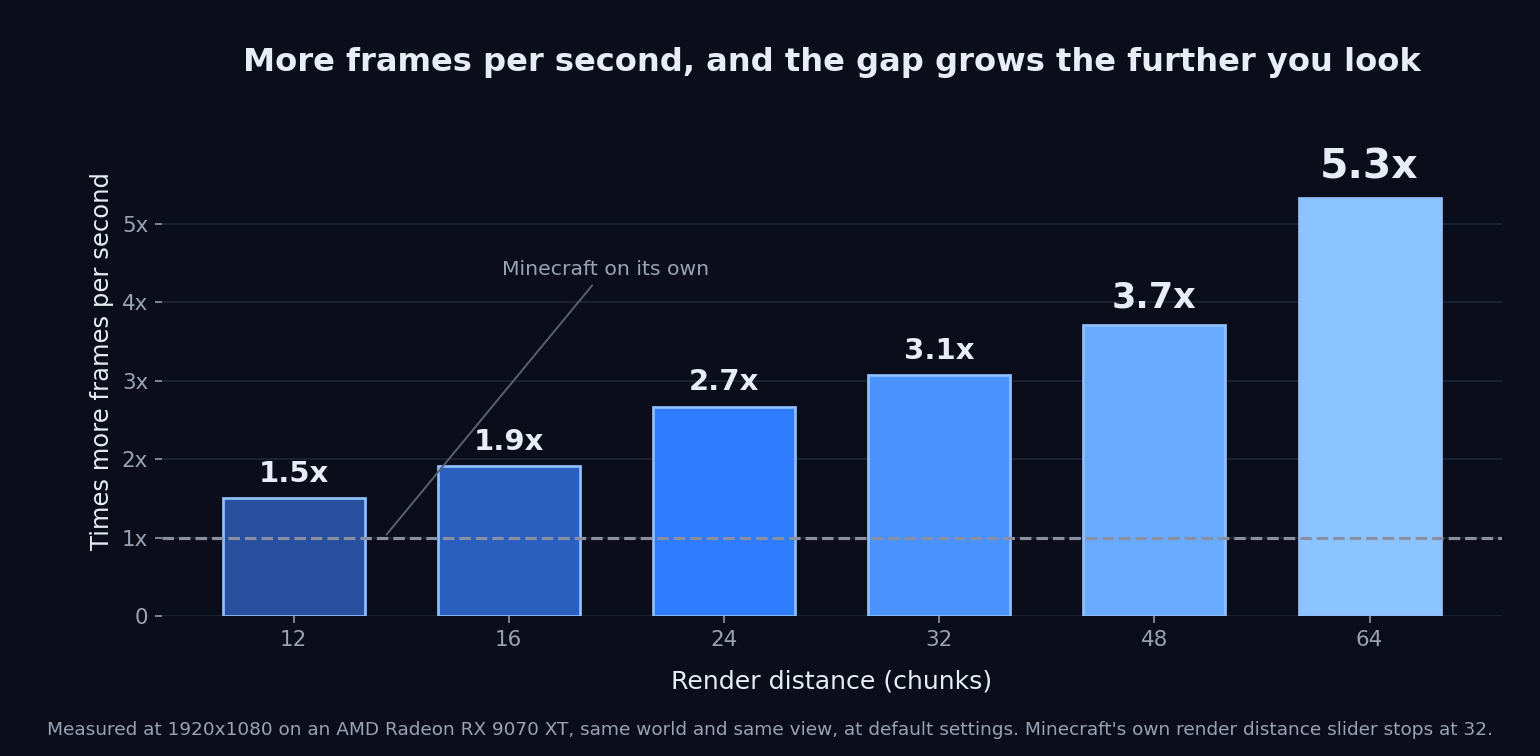
Measured at 1920x1080 on an AMD Radeon RX 9070 XT, same world, same view, one
run with the mod and one without. Measured without Sodium.
| Render distance | Minecraft | Meshelium | Difference |
| --- | --- | --- | --- |
| 12, Minecraft's default | 1,621 FPS | **2,437 FPS** | 1.50× (+50%) |
| 16 | 1,115 FPS | **2,126 FPS** | 1.91× (+91%) |
| 24 | 641 FPS | **1,709 FPS** | 2.67× (+167%) |
| 32, as far as Minecraft goes | 393 FPS | **1,206 FPS** | 3.07× (+207%) |
| 48 | 205 FPS | **761 FPS** | 3.71× (+271%) |
| 64 | 114 FPS | **607 FPS** | 5.32× (+432%) |
The further you look, the bigger the difference. Both columns are Minecraft's
Vulkan renderer, so the only thing that changes between them is Meshelium
itself.
**These numbers are from one computer.** Yours will land somewhere else.
## Works better with Sodium!
They used to be a choice: one replaced the other. Now you get both.
Sodium keeps doing what it is best at - building the chunks - and Meshelium
draws them with mesh shaders. Install both and it happens on its own; there is
nothing to switch on.
Measured on a Radeon RX 9070 XT at 1920x1080, standing in the same spot in the
same world: with Meshelium drawing, the frame is about **twice as fast as
Sodium on its own** - 1.9x at render distance 64, and 1.8x at 96.
You also get **GPU Visibility**, which only exists on this path: Meshelium
works out what you can actually see on the graphics card itself, instead of
drawing everything it is handed.
Use **Sodium 0.9.2** for your game version - the release, not the newer
0.9.3 alpha. (On 26.2, Sodium 0.9.2-beta.1 is the same build with a
different version number, and works too.) Meshelium plugs into parts of
Sodium that were never meant for other mods to touch, so another version may
not fit; the Meshelium settings screen shows which one you have and says
whether it matches.
With Sodium installed, Meshelium's settings are part of Sodium's video
settings: a **Meshelium** entry in the list on the left, with Sodium's Apply
and Undo. Only the settings that still do something are there. The ones that
only change how Meshelium builds chunks have nothing to do while Sodium is
doing that job, so they are hidden - including the memory settings described
below. They come back if you remove Sodium.
## What you need
- **Minecraft 26.2 or 26.3**, on **Fabric** or **NeoForge** - pick the download
that matches your game version and your loader
- On Fabric, [**Fabric API**](https://modrinth.com/mod/fabric-api) as well.
NeoForge needs no extra mod
- Windows or Linux. No Mac: Macs don't do mesh shaders on Vulkan yet
- A graphics card with mesh shaders: **AMD** RX 6000 or newer, **NVIDIA** GTX
16xx / RTX 20xx or newer, **Intel** Arc, and recent laptop and handheld chips
including the Steam Deck. Meshelium asks your driver rather than checking a
list of models, so anything that reports the feature will work - and if it is
missing, Meshelium turns itself off, tells you why, and your game keeps
working normally
Client side only. Your friends do not need it, and neither does your server.
## Do this or nothing will happen
Minecraft starts in the old drawing mode, OpenGL. Meshelium only works in the
new one, Vulkan.
1. **Options** → **Video Settings** → **Graphics API**
2. Choose **Prefer Vulkan (Experimental)** - that is Minecraft's own name for it
3. **Restart Minecraft.** It only changes while the game is loading
Skip this and it looks like the mod did nothing. If that happens, Meshelium puts
a message on screen with a button that does it for you.
## Playing online?
[Bobby](https://modrinth.com/mod/bobby) is what makes long distances work on a
server. A server only sends you the land close by, so a huge render distance
has nothing out there to draw no matter how fast your card is. Bobby remembers
the places the server already showed you and puts them back. Bobby remembers
the world, Meshelium draws it.
## Settings
A **Meshelium Settings** button at the top of Video Settings. With Sodium
installed, look for **Meshelium** in Sodium's video settings instead.
**Distance Cap** is how you get past 32. It widens Minecraft's own render
distance slider, up to 120 chunks (with Sodium installed, Sodium's slider, up
to 96). Raising the cap changes nothing on its own -
you still move the normal slider afterwards. Raise it gradually: past about 64
Minecraft itself needs more memory than a default launcher gives it, and at 120
it can run out and close. Give Minecraft more memory before pushing it far.
**GPU Visibility** (Sodium only, on by default) works out what you can actually
see on the graphics card instead of drawing everything Sodium hands it.
**Distance Fog** ships **Off**, and that is a change from how Minecraft looks.
Minecraft fades distant terrain at a fixed 1024 blocks however far you can see,
which covers most of the view past 64 chunks. Off keeps a short fade at the very
edge, so the horizon still softens. Match View Distance moves the haze out with
your render distance; Minecraft Default puts it back exactly as the game has it.
**Occlusion Culling** asks your graphics card which terrain is hidden behind
other terrain and skips it. On **Auto** it switches itself on at 48 chunks. It
pays most at ground level looking across a long view, and costs a little from a
high camera looking down. Nothing breaks either way, so try both and watch your
frame counter.
Behind **Advanced**, off unless noted: **Greedy Meshing** merges identical
neighbouring block faces. **Cull Tiny Plants Beyond** and **Cull Sub-Pixel
Detail Beyond** skip things too small to see at range. **Smart Leaves Beyond**
(on, 16 chunks) skips leaf faces buried inside canopies, keeping the
see-through look. **Solid Leaves Beyond** builds leaves fully solid past a
distance.
**Using less graphics memory** - these two are hidden while Sodium is
installed, because Sodium owns that memory instead. **Idle Memory Trim** (on)
hands back graphics memory Meshelium is not using after half a minute of
standing still. **Duplicate Terrain Memory** (Freed) releases the second copy
of the terrain Minecraft keeps even though Meshelium is the one drawing from
it, which saves gigabytes at long render distances. On laptops and handhelds
with integrated graphics this counts double, because their graphics memory is
your system RAM.
Everything applies as soon as you change it, apart from the startup notice,
which waits for the next launch. Switching Meshelium off and on, changing
Duplicate Terrain Memory, or flipping Greedy Meshing reloads the terrain, so
chunks rebuild for a few seconds.
## Thanks
[Nvidium](https://modrinth.com/mod/nvidium) by **MCRcortex** is why this was
worth attempting. They pioneered mesh-shader terrain in Minecraft and proved
the idea works. Meshelium is its own mod, not a port of theirs: it targets the
cross-vendor `VK_EXT_mesh_shader` extension rather than the NVIDIA dialect,
runs on Minecraft's Vulkan backend, and its architecture, memory model and
culling are its own. MCRcortex has no involvement in Meshelium and has not
endorsed it.
[Sodium](https://modrinth.com/mod/sodium) by **CaffeineMC**, for the chunk
builder Meshelium now draws from. CaffeineMC has no involvement in Meshelium
and has not endorsed it.
## Found a problem?
Bug reports, crashes, or just something that looks wrong:
. The log is the useful part to
attach - Meshelium writes down what it decided about your hardware, and why,
every time the game starts.
## NeoForge and the early loading screen
**On Minecraft 26.2 - handled for you; here is what is happening.**
NeoForge's loading screen and Minecraft's Vulkan renderer cannot both
exist. The loading screen creates the game window in OpenGL mode, and
Vulkan - the renderer Meshelium runs on - cannot draw to a window made that
way, so the game dies during start-up with a GLFW error that blames your
graphics drivers. It is not your drivers, and updating them will not help.
It is a known NeoForge issue (neoforged/NeoForge#3230) and its fix has not
been merged.
You do not have to do anything about it. Meshelium closes that loading
screen in the instant before the game creates its window, so the game
starts normally. You get no loading screen and a game window that appears
a moment later than usual; nothing else changes. Meshelium also turns
`earlyWindowControl` off in `config/fml.toml`, so that even on a future
NeoForge build where the live fix no longer applies, the game still starts.
**On Minecraft 26.3 - nothing to handle.** NeoForge for 26.3 currently
ships with its early loading screen switched off altogether (its loader
ignores the setting), and the game makes its own window, so the problem
above cannot happen. Meshelium leaves everything alone there and says so in
the log.
On OpenGL none of this applies and the loading screen is left alone.
The Fabric build is unaffected.