Описание
# Kaleidoscope: Hodgepodge
# 森罗物语:杂烩




## English
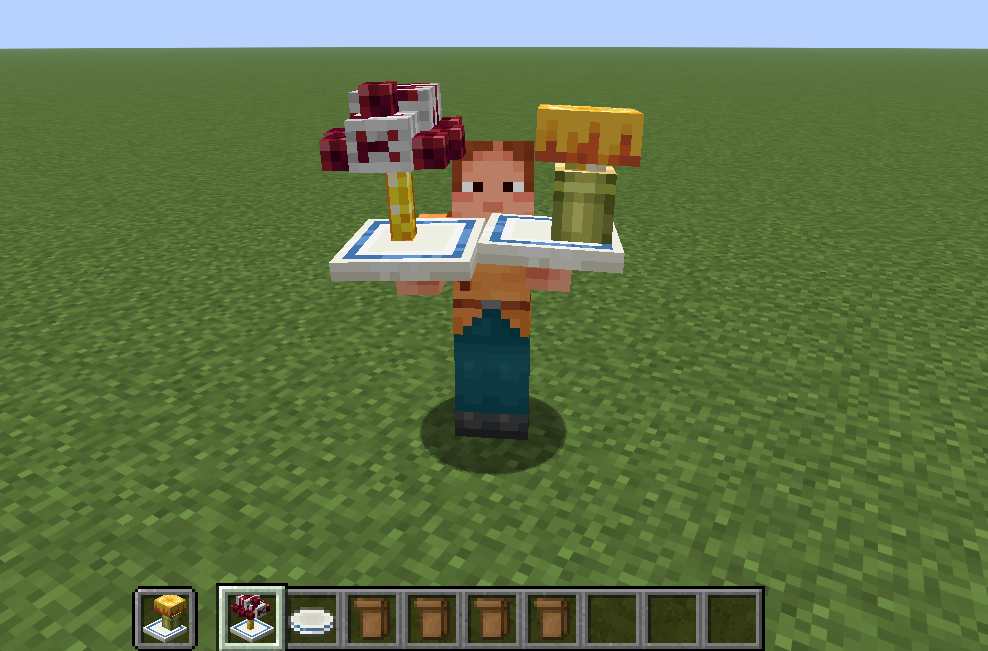
Kaleidoscope: Hodgepodge is an add-on for **Kaleidoscope: Cookery** that lets you take dishes apart and rearrange their ingredients into your own meals.
Collect ingredient models with Wrapping Bags, place them freely on plates and soup bowls, rotate each piece, and keep the finished arrangement when you pick it back up.
### Requirements
- Forge Config Api
- Kaleidoscope: Cookery
- Java 25 or newer
### Getting Ingredients
The Wrapping Bag has two modes. Hold **Shift** and right-click to switch between them.
**Storage Mode**
- Right-click a complete, untouched dish to pack all of its available ingredient models. The original dish is consumed.
- A dish that has already been eaten cannot be packed.
- A complete vanilla Cake can also be packed as one large ingredient model. A cake with any slices missing cannot be packed.
- Stackable foods provide one ingredient at a time.
- Right-click an individual ingredient on a custom plate or bowl to return only that ingredient to the bag.
- Each bag holds up to **9 ingredient models**.
The bag tooltip shows its current mode, contained ingredients, and their source dish or dishes. Filled and empty bags also use different item appearances.
In Creative Mode, the **Kaleidoscope: Packs** tab contains a pre-filled Wrapping Bag for every currently supported ingredient model.
### Creating a Custom Dish
Place any supported plate or a Porcelain Soup Bowl, then switch a filled Wrapping Bag to **Placement Mode**.
- **Right-click** a plate or bowl to place the next ingredient from the bag.
- **Left-click** the container while holding the bag to rotate the next ingredient clockwise by 90 degrees.
- A black outline previews the ingredient's size and position.
- A dark blue outline shows the available placement area.
- Existing ingredients have their own physical size, so aiming at a top or side places new ingredients around them instead of through them.
- Ingredients that do not suit the selected plate or soup bowl cannot be placed there.
An empty bag in Placement Mode will not change the container and will display a reminder.
### Plates and Bowls
| Container | Maximum ingredients | Placement space (width x height x depth) |
| --- | ---: | ---: |
| Wooden Plate | 20 | 16 x 16 x 16 pixels |
| Porcelain Plate | 40 | 16 x 32 x 16 pixels |
| Medium Porcelain Plate | 80 | 32 x 32 x 16 pixels |
| Large Porcelain Plate | 360 | 42 x 32 x 42 pixels |
| Porcelain Soup Bowl | 40 | 16 x 32 x 16 pixels |
Wooden plates offer a compact arrangement area. Porcelain containers provide twice the vertical space for taller and more elaborate compositions.
The Medium Porcelain Plate occupies two adjacent blocks. The Large Porcelain Plate occupies a 3 x 3 area and is placed around the block you target; placement fails if any part of that area is obstructed. Their ingredient spaces are continuous across block boundaries, so models can be positioned across the seams instead of being confined to one block at a time.
Both multi-block plates can be waterlogged. Breaking or clearing the structure restores water independently in every part that contained it.
### Soup Base
A newly crafted Porcelain Soup Bowl includes a soup base. Finishing a custom soup consumes both its ingredients and the soup base, leaving a bowl without soup.
Place that bowl in the world and right-click it with **Pork Bone Soup** from Kaleidoscope: Cookery to refill the soup base. The Pork Bone Soup is consumed and returns a regular Minecraft Bowl.
### Carrying Your Creations
Breaking a plate or bowl that contains ingredients preserves the complete arrangement on the dropped item. Placing it again restores every ingredient, position, and rotation.
Empty containers drop normally in Survival Mode. In Creative Mode, only containers holding a custom arrangement are preserved as drops.
### Lunch Box
A lunchbox is a highly customizable tool for arranging ingredient models. It has a total of 15 slots, and each slot can hold 16 models of the same type. You can open the GUI to select and preview the models you want to place and arrange them freely.
### Naming Dishes
Rename a custom dish in an anvil, or right-click a placed dish containing ingredients with a renamed Name Tag. A successful Name Tag use consumes one tag. Unnamed or blank tags and empty dishes cannot be used this way. On Medium and Large Porcelain Plates, naming any part names the entire dish. Names are stored in the `kaleidoscope_hodgepodge:dish_name` component on dropped items and survive placing the dish again. Anvil renaming and name removal update this component too.
Recorded recipes show an optional `Dish Name :` row above the author. Binding a named recipe temporarily overrides the destination dish's name across the whole plate. Manually unlocking cancels that inheritance and restores any independently assigned name; completing the recipe keeps its name on the finished dish. Name Tags cannot rename a recipe-locked dish. Existing unnamed recipes remain compatible and do not show a name row.
### Hodgepodge Recipe
Hodgepodge Recipe is a special variant for KC recipe item. When right-clicking a finished hodgepodge dish with an empty recipe, the detailed ingredients and structure will be recorded.
With a recorded hodgepodge recipe, you can easily copy your friends' innovative creation & share your dish with others as well!
How to use it? Hold the recorded recipe, then right click the corresponding container. The container will enter a locked state, and only accepts the specified ingredients, till the whole recipe ends(Or a second right click to unlock).
You don't need to adjust the pos & rot for the ingredient model, it will configure them for you automatically.
For Medium and Large Porcelain Plates, recording, locking, placement progress, and unlocking apply to the entire plate, regardless of which part you click. Recipes preserve ingredients across block seams and adapt Medium Plate layouts to the destination plate's facing. Every part must be empty before binding a recipe.
Multi-block recipes recorded before this fix may contain incomplete contents or part-local coordinates. Record those recipes again from the original dish before copying it.
New recipes store the creator's UUID, name, and server-provided skin texture properties when recorded. This author snapshot travels with the recipe through multiplayer transfers and world saves, so the creator does not have to be online. The tooltip shows a flat face avatar with its hat layer rather than a player-head item. Skin images load asynchronously using Minecraft's skin cache; a default avatar is shown while loading or if the skin is unavailable. Servers without skin texture properties can still preserve the author's name.
Older recipes containing only a UUID remain readable and try to resolve the author as a fallback. Re-record them to persist the author snapshot. Update both the server and clients together, as recipe network data now includes the author profile.
### Eating Custom Dishes
- Hold a customized plate or bowl and use it in the air to eat the whole dish. Nutrition, saturation, and status effects from every ingredient are combined, and the empty container is returned afterward.
- Right-click a placed custom dish with an empty hand to eat one random ingredient. The container is returned when the final ingredient is eaten.
- Decorative ingredients marked as non-nutritional provide no hunger, saturation, or status effects.
- Some large ingredient models represent several portions. Their hunger value is multiplied by the number of portions represented by the model.
- You can rename your custom dish via name tag or anvil. Once recorded by recipe item, the name of the dish will also inherit to the new one.
### Dish data commands
Use `/hodgepodge export` while holding a custom dish to receive a clickable chat message that copies its complete data code. Import data with a player target immediately after `dish`:
`/hodgepodge import dish `
`` accepts player names and selectors such as `@a`, `@e`, `@n`, `@p`, `@r`, and `@s`. Any non-player entities selected by `@e` or `@n` are ignored; the command fails when no player is selected. The import command may be run from a command block, which avoids the chat input length restriction.