
Описание
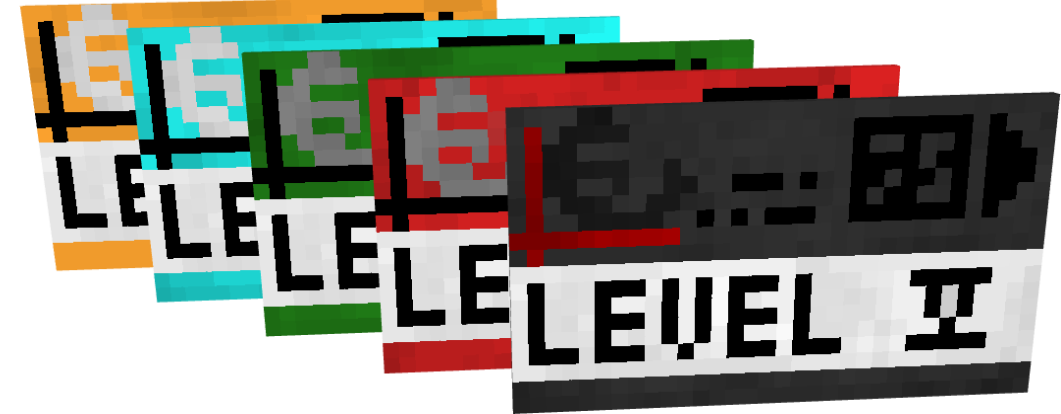
This mod adds a key door system with a keycards system verificated via networks with security systems that gives ability to create multiple facilities with different networks in single world. Also mod adds many functional and decorative blocks
## Networks
Networks gives ability to create many autonomic facilities with diffirent keycards.
### Features:
- Roles
- Access levels
- UUID verification
Roles allows to do specific actions: adding users, configurate keydoors, manage keycards level e.t.c
### Roles:
- Founder
- Admin
- Moderator
- User
## Keycards
Keycards activates different mechanisms: key doors or keycard interfaces. Keycard level is not binded to it's actual texture. You can set any level
Features:
- Individual name
- UUID verification (coming in 0.8)
- Access level
- Network
## Doors
Mod adds key doors and code doors. Key doors can be opened via keycards, code doors can be only open by providing password.
All the doors closes after a small delay but this can be disabled in door settings
To the key doors you can set any level: from 0 to billiards
Code doors password cannot be longer than 9 symbols
## Decorations
Currently there aren't many decoration block, more will be added in future updates
Want to suggest an idea? Leave it in [discord server](https://discord.gg/yMAXVDabCs)!
P.S if you are a designer - dm me in [discord](https://discord.gg/yMAXVDabCs) to improve visual. I'm bad at this...
## Usage
To set up door you first need to create network. Use keycard programmator.
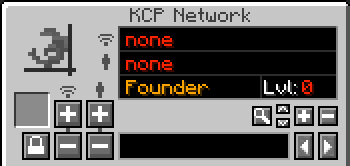
First you see a network name

Currently selected user

But how to add Network and User?
Type Network Name at the bottom box to set a name

Then click add button at the left
Minus button deletes network

Now your menu changed and you will see something like this
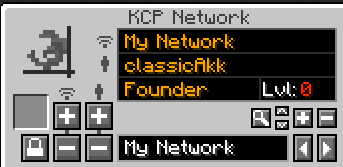
To add user you need to type a username at box below (replace your network name) and then click one of these buttons as like network management above

Now you can view this user settings: his role and access level. But how do you manage it?
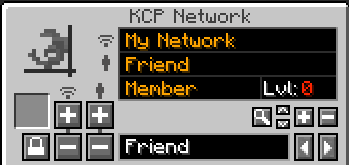
There are a few buttons on the right

Arrows changes user role: member / moderator / admin / founder
Plus and minus buttons manages user level
Magnifying glass button used to find players. For example if you want to chage someones properties you can type his name at box below and click this button. System will found this user in selected network
But why do we need user level and roles?
Now let's move to Keycard menu
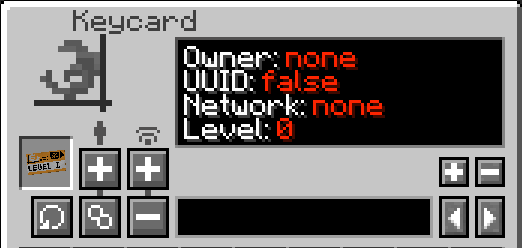
Here you can view keycard's properties. First of all you need to bind your keycard to network. To do this you need a role at least moderator.
Adding networks is similar to the network creation we did before
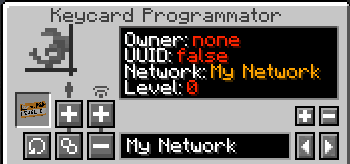
Now you can change keycard properties. To set level you have a buttons on the right. Level can be changed only by moderators and higher. But moderators can modify level in case their user level we changed in network configuration is higher.
For example: User level: 5; User Role: Moderator; That means this user can set keycard level up to 5;
Admins and Founder has no restrictions in management.
You propably noticed these buttons. They are manages first two parameters of keycard.

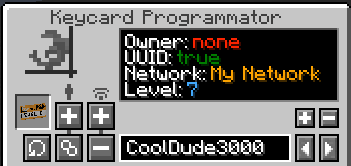
Final variant of the keycard configuration
## How to add keydoors?
You need Door Programmator
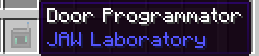
First of all set it's configuration as well as your keycards
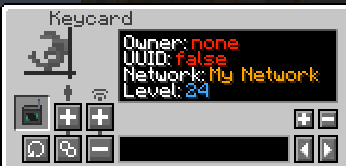
Then click on KeyDoor and manage it's configuration
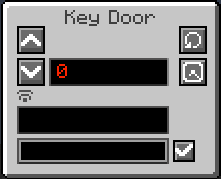
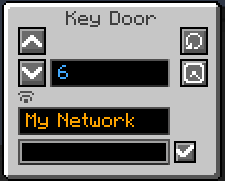
!! Warning !! After setting network you need to re-open GUI
This button sets auto closing. By default keydoor closes in few seconds. But if you switch it's mode it will kept opened untill you click it with hand.

Most of the assets belongs to [Nazzy] (also mod inspired from one of his project)(https://www.youtube.com/channel/UCQ2L7O1KDK7ze75dSe1C-yg)