Описание
# Tutla's CCS Editor
ClickCrystals Script lets you build powerful in-game modules without having to learn goofy java. Automate anything within this editor.
__Requires [ClickCrystals](https://clickcrystals.xyz/download) >=1.4.0.__
## How to use
1. **Download the mod:** Download the mod from Modrinth and put it into your `mods` folder
2. **Download ClickCrystals:** Download it from the [website](https://clickcrystals.xyz/download) or Curseforge and put it in your `mods folder`
3. **Open the editor with the keybind:** The default keybind is `j`
4. **Drag Nodes from the _Palette_ onto the _Editor_**
5. **Copy the script from Text Mode:** Copy it from the text mode on the top of the screen
6. **Paste it into ClickCrystals:** Open the ClickCrystals Menu and go to _Scripting_. From there click **paste** to paste your script. Or just save it using the in game file manager.
**You need to know how to use [CCS](https://github-wiki-see.page/m/clickcrystals-development/ClickCrystals/wiki/Using-ClickCrystalsScript) to understand basic functionality before writing scripts.**
## Feature List
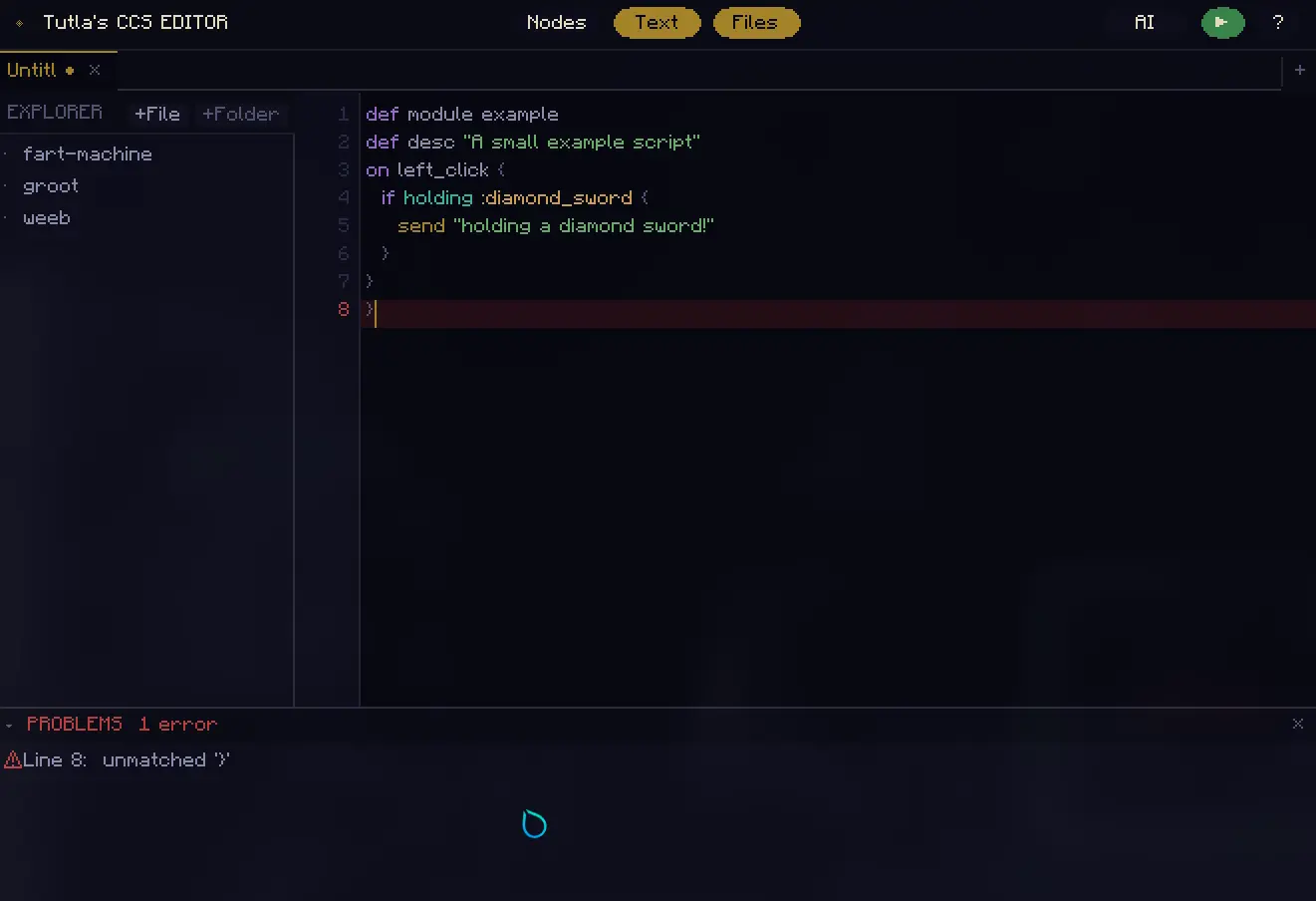
- **Text Editor:** The text editor lets you edit the raw script. Includes syntax highlighting and _basic_ error detection
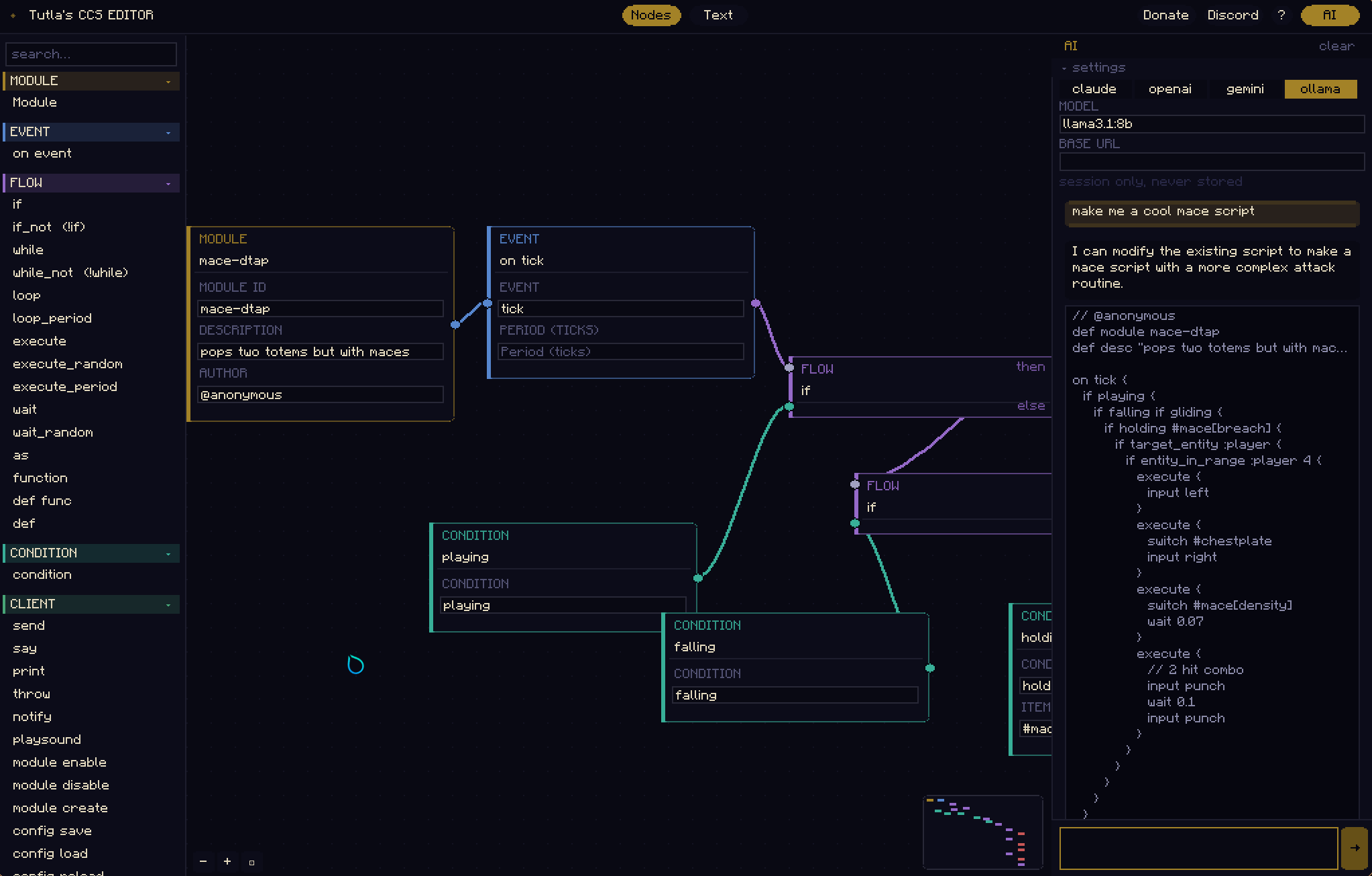
- **Node Editor:** Drag nodes from the palette onto the editor to draft your script
- **Generative AI:** The AI tab lets you generate scripts by just describing it. For more information read the section below
### Text Editor
- **Syntax highlighting** for keywords, commands, conditions, strings, numbers, and comments
- **Auto-close brackets** — typing `{` inserts `{}` with the cursor placed inside
- **Bracket pair highlighting** — matching `{` / `}` pairs are highlighted when the cursor is near one
- **Tab autocomplete** — press Tab to complete the current keyword or command
- **Find (`Ctrl+F`)** — search bar at the top of the editor; `Enter` / `Shift+Enter` to step through matches, `Escape` to dismiss
- **Find & Replace (`Ctrl+H`)** — adds a replace bar; replace one (`Enter`) or all (`Ctrl+Enter`) occurrences
- **Auto-beautify on save (`Ctrl+S`)** — reformats the script with consistent 3-space indentation before writing to disk, matching the formatter at `ccs.tutla.net`
- **Problems panel** — collapsible bottom bar showing all detected syntax errors with line numbers; click any error to jump straight to that line
### File Manager
- **Full VS Code-style file explorer** for your `.clickcrystals/scripts` directory
- Create, rename, and delete files and folders — including nested subfolders
- **Right-click context menu** — New File, New Folder, Rename, Delete on any item
- All deletes require a confirmation dialog; deleting a folder removes all its contents
- Closing a file automatically closes its open editor tab
- Tab titles show the relative path (e.g. `workflows/door` instead of just `door`)
### Layout & Workflow
- **Multi-tab editing** — open several scripts at once; tabs show unsaved-change indicators
- **Untitled scripts** — new files are `Untitled` until first saved with `Ctrl+S` (triggers Save As)
- **Run button (`▶`)** — green button in the header sends `,ccs reload-scripts` to chat, reloading your scripts in-game without leaving the editor
## AI
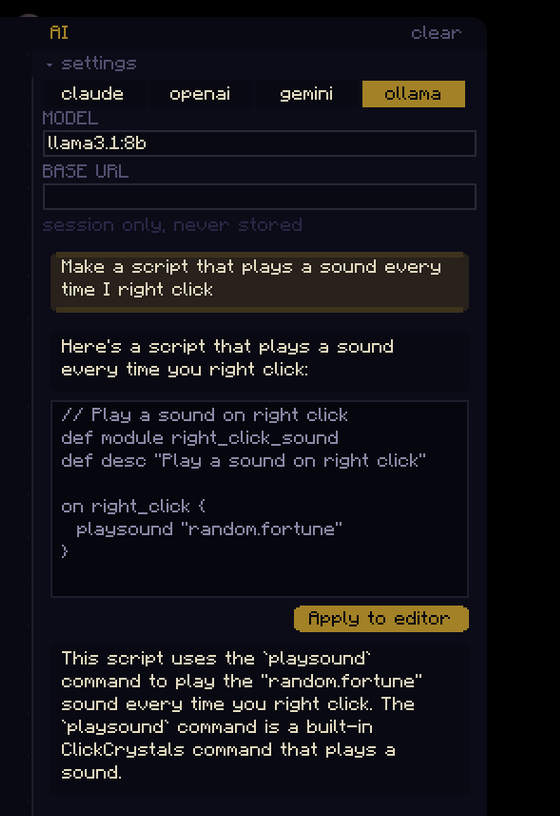
The AI tab lets you generate scripts by just describing it. To use it, go to the top right of your screen and click "AI" to open up the menu.
In the menu you will be presented with 4 options:
- **Claude:** Get your API key [here](https://platform.claude.com/settings/workspaces/default/keys). Claude does let you use the API for free under strict usage limits unless your paying for it. Therefore, only use if you're willing to pay for it but get higher quality scripts.
- **GPT:** Get your API key [here](https://platform.openai.com/api-keys)
- **Gemini:** Get your API key [here](https://aistudio.google.com/api-keys)
- **Ollama:** Let's you run AI locally on your system without the internet (requires a competent GPU). Preferred model is `llama3.1:8b` but you can definetly use a better model. Install [ollama](https://ollama.com) and make sure its serving (serve by running `ollama serve` in terminal). If your first response is taking too long, make sure `llama3.1:8b` or the model you want is __already installed__. Install it via `ollama run llama3.1:8b`.
If you're not running it locally via ollama then put the API key in it's respective input in the AI panel within the editor.
While using AI keep in mind to:
- **Be concise:** It's an AI, not ItzRealMe. Think of it as a 47 year old professional developer who plays Minecraft whenever free. Of course he wouldn't know what a "one-cycle" or a "d-tap" is! __Specify step by step what to do instead of giving a vague explanation, lower end models and most local models tend to hallucinate.__ Some models such as `gemini-2.5-flash` will straight up reject your request if you don't be specific enough.
- **Clear chat when you're done with a task:** Too much context build up will use up tokens quickly and will hit usage limits faster than an F1 Car. Make sure to clear your chat whenever you're done with a specific task such as the part of your script where you open a door. Clear it out whenever everything previous in the script doesn't need to be worked on. Your current script is sent to the AI anyways.
- **"Unknown node! What do I do?"- Don't panick:** If AI generates an unknown node then tell it the name of what it got wrong and specify its unkown. For example: `It shows "play_Sound" is unknown. Please fix it by using the correct defintion. Specify if it doesn't exist`. If AI can't resolve even after repeated prompting then try looking up the node yourself, afterall: Humans are superior (but Claude Opus can definitely get it done)