Описание
# This mod will no longer be updated on modrinth!
# See https://www.curseforge.com/minecraft/mc-mods/camera-obscura-serverside-rendering for the latest version!
# Camera Obscura

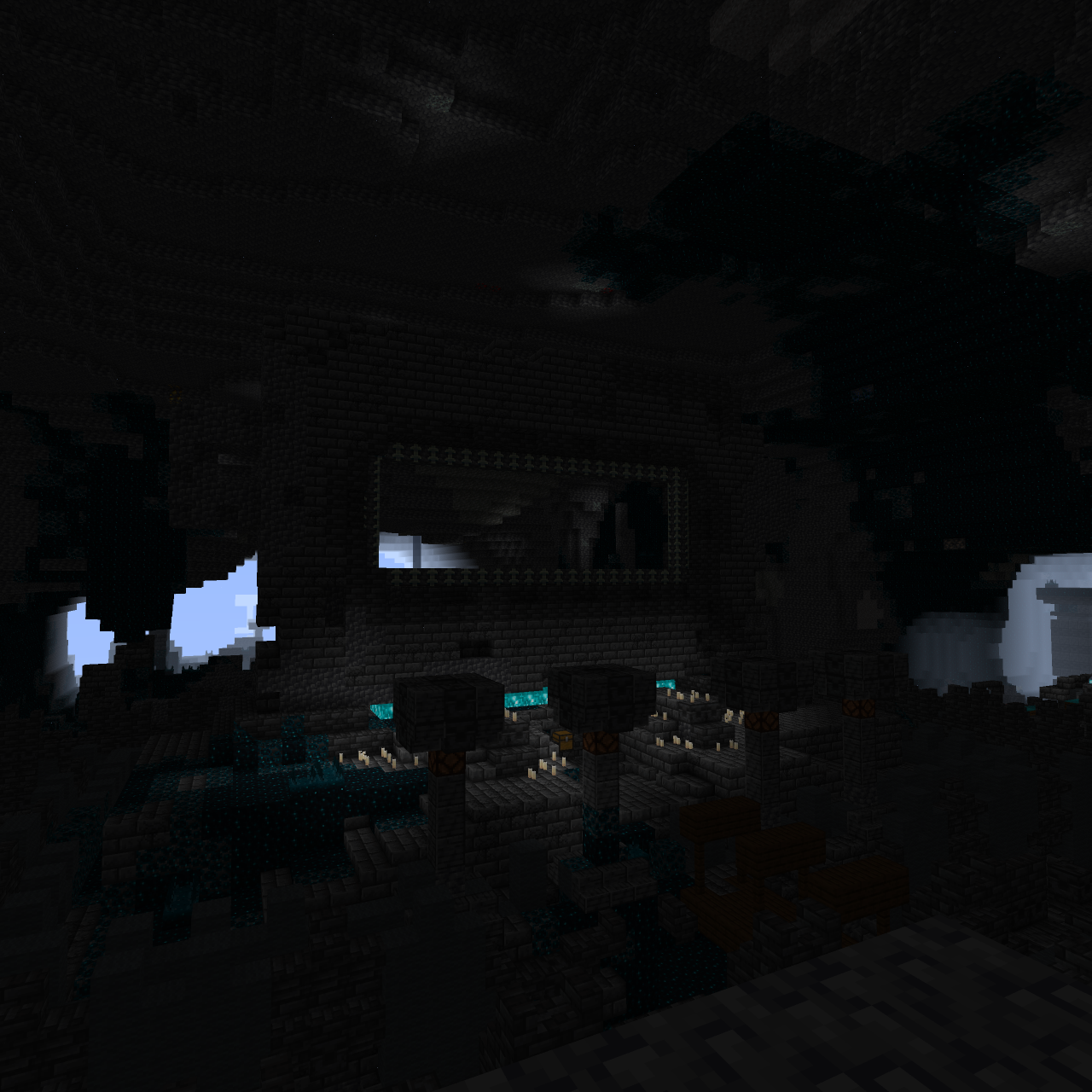
Camera Obscura is a **server‑side software rasterizer** that renders the world as seen by any entity (player, mob, etc.) directly on the server, producing Photos or Videos as Minecraft **maps**.
It has deep integrations for custom items (Nexo, ItemsAdder) and a custom preset system.
---
## Features
- **Take photos**: Generate a map item showing what the target entity sees.
- **Record videos**: Capture your world on video and play it back on item frames.
- **Fully configurable**: Resolution, color mode, dithering, render distance, and more.
- **Custom item support**: Create cameras/camcorders with any appearance via **Nexo** or **ItemsAdder**.
- **Asynchronous rendering**: Never blocks the main server thread.
- **No client mods required**: Everything is server‑side; maps/recordings work on vanilla clients.
---
## Installation
### Fabric Server
1. Install [Fabric API](https://modrinth.com/mod/fabric-api) and [Polymer](https://modrinth.com/mod/polymer) (for virtual items).
2. Place `camera-obscura-fabric.jar` into your `mods/` folder.
3. The configuration file will be created on start.
---
## Configuration
The configuration file is `config/cameraobscura/config.json`.
```json
{
"renderDistance": 32,
"showSystemMessages": false,
"renderEntities": true,
"fullbright": false,
"fov": 70,
"biomeBlend": 1,
"ssaa": 2,
"maxChunkRebuildsPerTick": 5,
"debug": false,
"cameraConsumesItem": true,
"cameraConsumeItem": "map",
"commandPermissionLevel": 2
}
```
| Option | Description |
|---------------------------|------------------------------------------------------------------------------------------|
| `renderDistance` | View distance in blocks (higher = longer render time). |
| `showSystemMessages` | Show “Taking photo…” / “Done!” messages in chat. |
| `renderEntities` | Whether to render entities (players, mobs, item frames) in the picture. |
| `fullbright` | Ignore lighting (everything appears at full brightness). |
| `fov` | Field of view in degrees (default is 70). |
| `biomeBlend` | Radius for blending block colors (biome tint). `0` = no blending. |
| `ssaa` | Supersampling anti‑aliasing factor (1 = off, 2 = 2x supersampling, 3 = 3x). |
| `maxChunkRebuildsPerTick` | Maximum chunks rebuilt per frame per video recording and live-map (to limit CPU spikes). |
| `debug` | Print frame timings and show FPS overlay on the output image. |
| `cameraConsumesItem` | Whether taking a photo consumes an item (e.g. a map). |
| `cameraConsumeItem` | Required item material (e.g. `map`, `paper`). |
| `commandPermissionLevel` | Base permission level for commands. |
---
## Commands & Permissions
**Base permission** `cameraobscura.command`.
All commands use the root `/camera-obscura`
### 1. Take a map from your perspective
```
/camera-obscura [scale]
```
- `scale`: multiply the map resolution (1 = 128×128, 2 = 256×256, up to 3).
- Gives you a **filled map** showing what *you* see.
### 2. Take a map of another entities perspective
```
/camera-obscura [scale]
```
- ``: any living entity (player, mob, etc.)
- ``: who receives the map item.
### 3. Save as PNG image
```
/camera-obscura save [entity] [scale]
```
- Saves the rendered image as a `.png` in `config/cameraobscura/renders/`.
### 4. Reload configuration
```
/camera-obscura reload
```
Reloads the config file.
### 5. Clear resource/model cache
```
/camera-obscura clear-cache
```
### 6. Give a camera item
```
/camera-obscura give [player]
```
- ``: The name of a preset defined in `presets.json` (e.g. `camera`, `camcorder`, `instant`, `polaroid`, `pro_camera`, `handycam`, `cctv`).
- `[player]`: Optional player name; if omitted, gives the item to the command sender.
**Examples:**
- `/camera-obscura give camera` -> gives yourself the default camera.
- `/camera-obscura give camcorder Pinnit` -> gives the player `Pinnit` a camcorder.
- `/camera-obscura give my-preset` -> gives yourself an item from a preset.
---
## 📷 Using the Camera Item
**Basic Camera**
- Hold the camera in your **main hand**.
- Right‑click -> after a countdown, the photo map item appears in your inventory (or drops on the ground if full).
- The map shows the world from *your* viewpoint at that moment.
**Camcorder**
- Same controls, but starts **recording** instead of taking a single photo.
- The action-bar text indicates recording.
- Release to stop recording, the video will be saved as a map item that can be played back on item-frames.
- While recording, particles appear around the camera (frame effect).
- Videos are stored as APNG in `config/cameraobscura/camera_videos/.apng`
---
# Components
The mod uses **data components** to store camera settings on the item stack.
This allows you to create cameras with different resolutions, color modes, and video parameters using standard commands, recipes, or loot tables.
### Available Components
| Component ID | Type | Description |
|--------------------------------|--------------------------------------------------------|--------------------------------------------------------------------------|
| `camera-obscura:color` | `string` (ColorMode) | `"COLOR"`, `"MONOCHROME"`, `"GRAYSCALE"`, `"SEPIA"` |
| `camera-obscura:resolution` | `{width:int, height:int}` | Resolution in pixels (e.g. `{width:256, height:256}`) |
| `camera-obscura:dither` | `string` (DitherMode) | `"NONE"`, `"BAYER_2X2"`, `"FLOYD_STEINBERG"`, etc. (see full list below) |
| `camera-obscura:video` | `{frame_rate:int, max_frames:int, loop_playback:bool}` | Video recording parameters |
| `camera-obscura:map` | `unit` | Marks the item as a **live map** (internal) |
| `camera-obscura:camera_entity` | `entity_reference` | Stores the entity that took the photo (internal) |
| `camera-obscura:data` | `{id:uuid, video_params:...}` | Internal video data |
**DitherMode values**:
`NONE`, `BAYER_2X2`, `BAYER_4X4`, `BAYER_8X8`, `FLOYD_STEINBERG`, `ATKINSON`, `JARVIS_JUDICE_NINKE`, `STUCKI`, `SIERRA`, `BURKES`
---
### Using Components in Commands
#### /give
```mcfunction
/give @p camera-obscura:camera[camera-obscura:color="SEPIA",camera-obscura:resolution={width:512,height:512},camera-obscura:dither="FLOYD_STEINBERG"]
```
#### /item modify
Create a data pack with an item modifier:
```json
{
"function": "set_components",
"components": {
"camera-obscura:color": "GRAYSCALE",
"camera-obscura:resolution": { "width": 192, "height": 192 },
"camera-obscura:dither": "BAYER_8X8"
}
}
```
Then run: `/item modify entity @s weapon.mainhand my_pack:camera_settings`
---
### Using Components in Recipes
In a crafting recipes:
```json
{
"type": "minecraft:crafting_shaped",
"pattern": ["###", "#P#", "###"],
"key": {
"#": "minecraft:iron_ingot",
"P": "minecraft:ender_pearl"
},
"result": {
"id": "camera-obscura:camera",
"components": {
"camera-obscura:color": "SEPIA",
"camera-obscura:resolution": { "width": 128, "height": 128 },
"camera-obscura:dither": "NONE"
}
}
}
```
For a camcorder (video mode), include `video`:
```json
"components": {
"camera-obscura:color": "COLOR",
"camera-obscura:resolution": { "width": 256, "height": 256 },
"camera-obscura:video": { "frame_rate": 15, "max_frames": 300 }
}
```
---
### Giving a Camcorder with Default Video Settings
The basic camcorder item (without components) uses global config defaults. To explicitly set video parameters:
```mcfunction
/give @s camera-obscura:camcorder[camera-obscura:video={frame_rate:10,max_frames:200,loop_playback:true}]
```
## Built-in Items
On Fabric, Camera Obscura adds a few **built‑in camera and camcorder items** with pre‑configured settings (color mode, resolution, video parameters).
### Camera Items (Photo Mode)
| Item ID | color Mode | Resolution | Dithering |
|-----------------------------------|--------------|------------|-----------|
| `camera-obscura:camera` | `COLOR` | 128×128 | `NONE` |
| `camera-obscura:grayscale_camera` | `GRAYSCALE` | 128×128 | `NONE` |
| `camera-obscura:primitive_camera` | `MONOCHROME` | 128×128 | `NONE` |
| `camera-obscura:retro_camera` | `SEPIA` | 128×128 | `NONE` |
### Camcorder Items (Video Mode)
Record videos with pre‑set framerate and max frame count.
| Item ID | color Mode | Resolution | Dithering | Video (FPS / Max Frames) |
|--------------------------------------|--------------|------------|-----------|--------------------------|
| `camera-obscura:camcorder` | `COLOR` | 128×128 | `NONE` | 10 FPS / 400 frames |
| `camera-obscura:grayscale_camcorder` | `GRAYSCALE` | 128×128 | `NONE` | 20 FPS / 400 frames |
| `camera-obscura:primitive_camcorder` | `MONOCHROME` | 128×128 | `NONE` | 20 FPS / 400 frames |
| `camera-obscura:retro_camcorder` | `SEPIA` | 128×128 | `NONE` | 20 FPS / 400 frames |
**Usage example:**
```mcfunction
/give @s camera-obscura:grayscale_camera
```
---
## Video Playback
To play back a video maps:
- Place the map in an **item frame**.
- Right‑click the item frame and the video will start playing on the map.
- Right‑click again to stop playback.
## Presets
You can add your own presets, pre‑configured camera items with custom materials, display names, and camera settings (resolution, color mode, dither mode, video parameters).
Presets are stored in `presets.json` and can be given to players using the `/camera-obscura give ` command.
---
### Preset Configuration Format
The `presets.json` file contains a JSON object where each key is a preset name and the value is an object with the following fields:
| Field | Description |
|--------------|-----------------------------------------------------------------------|
| `material` | Item ID (e.g. `"paper"`, `"clock"`) |
| `camera` | Camera‑specific options (see below) |
| `components` | Optional vanilla data components to apply to the item stack (1.20.5+) |
#### Camera Options
All fields are optional
| Field | Type | Description |
|----------------|------------------------------|----------------------------------------------------------------------|
| `resolution` | `{ width, height }` | Output resolution in pixels (e.g. `{ "width": 256, "height": 256 }`) |
| `color_mode` | string | `"COLOR"`, `"MONOCHROME"`, `"GRAYSCALE"`, `"SEPIA"` |
| `dither_mode` | string | `"NONE"`, `"BAYER_2X2"`, `"FLOYD_STEINBERG"`, etc. |
| `video_params` | `{ frame_rate, max_frames }` | Video recording parameters |
---
### Default Presets
The mod ships with several ready‑to‑use presets. You can modify or delete them as you like.
```json
{
"camera": {
"material": "paper",
"camera": {
"resolution": { "width": 128, "height": 128 },
"color_mode": "COLOR",
"dither_mode": "NONE",
"video": { "frame_rate": 0, "max_frames": 1 }
},
"components": {
"minecraft:item_name": { "text": "Camera", "color": "gold" },
"minecraft:max_stack_size": 1
}
},
"camcorder": {
"material": "paper",
"camera": {
"resolution": { "width": 128, "height": 128 },
"color_mode": "COLOR",
"dither_mode": "NONE",
"video": { "frame_rate": 20, "max_frames": 200 }
}
},
"instant": {
"material": "paper",
"camera": {
"resolution": { "width": 256, "height": 256 },
"color_mode": "SEPIA",
"dither_mode": "BAYER_4X4"
},
"components": {
"minecraft:item_name": { "text": "Instant Camera", "italic": false }
}
},
"polaroid": {
"material": "paper",
"camera": {
"resolution": { "width": 512, "height": 512 },
"color_mode": "GRAYSCALE",
"dither_mode": "FLOYD_STEINBERG"
},
"components": {
"minecraft:item_name": { "text": "Polaroid", "color": "white" },
"minecraft:custom_model_data": 1
}
},
"pro_camera": {
"material": "ender_eye",
"camera": {
"resolution": { "width": 128, "height": 128 },
"color_mode": "COLOR",
"dither_mode": "NONE",
"video": { "frame_rate": 30, "max_frames": 600 }
},
"components": {
"minecraft:item_name": { "text": "Pro Camera", "color": "light_purple", "bold": true },
"minecraft:max_stack_size": 1,
"minecraft:custom_model_data": 2
}
},
"handycam": {
"material": "clock",
"camera": {
"resolution": { "width": 256, "height": 256 },
"color_mode": "COLOR",
"dither_mode": "BAYER_2X2",
"video": { "frame_rate": 15, "max_frames": 450 }
},
"components": {
"minecraft:item_name": { "text": "Handycam", "color": "aqua" },
"minecraft:max_stack_size": 1
}
},
"cctv": {
"material": "observer",
"camera": {
"resolution": { "width": 192, "height": 192 },
"color_mode": "MONOCHROME",
"dither_mode": "SIERRA",
"video": { "frame_rate": 5, "max_frames": 30000 }
},
"components": {
"minecraft:item_name": { "text": "CCTV Camera", "color": "dark_gray" },
"minecraft:max_stack_size": 1
}
}
}
```
---
### Using Presets in Commands
```mcfunction
/camera-obscura give camera
/camera-obscura give camcorder
/camera-obscura give instant
/camera-obscura give handycam Notch
```
Tab completion suggests available preset names.
### Reloading Presets
After editing `presets.json` while the server is running, run:
```mcfunction
/camera-obscura reload
```
This reloads both the main configuration and all presets without restarting the server.
---
## How It Works (Technical Overview)
Camera Obscura runs **completely on the server** and uses a **software rasterizer** to draw the scene pixel by pixel.
- The renderer requests chunks and entities around the target.
- Block models are converted into triangles and stored in a cache (per chunk).
- Lighting, ambient occlusion, and fog are computed from the actual world state.
- Rendering happens asynchronously on a separate thread pool, no lag for the main game.
- After rendering, the image is converted to (a) Minecraft map(s) (or saved as PNG).
- **Video recording** captures frames at the configured framerate.
### Performance considerations
- Higher resolution & SSAA increase CPU usage drastically.
- Render distances above 128 may cause issues if chunks are not loaded.
- Video recording is CPU‑intensive. For high‑quality recordings, consider lowering the framerate!
---
## Troubleshooting
| Problem | Check |
|--------------------------------------|-------------------------------------------------------------------------------------------------|
| Photo doesn't appear in inventory | Check that `cameraConsumesItem` is `false` or you have the required item (e.g. a map). |
| “Missing required item” message | You need the configured `cameraConsumeItem` material in your inventory. |
| Very long render times (> 5 seconds) | Reduce `renderDistance`, `ssaa`, or `resolution`. Enable `debug` to see per‑frame timings. |
| Server crashes with OOM error | Increase server memory (`-Xmx2G` or more). Lower `renderDistance` and `ssaa`. |
| Custom Nexo/ItemsAdder item ignored | Ensure the `camera` section is correctly indented and the mechanic is spelled exactly `camera`. |
---