
Описание
# 📺 AnimatedFrames — v1.7
Display **GIFs**, **PNGs**, **JPGs**, **JPEGs** and **MP4 videos** on screen!
**AnimatedFrames** allows you to display **GIFs, PNGs, JPGs, JPEGs and MP4 videos within Minecraft** using commands.
## Requirements
- **Loader support**: Forge • Fabric • NeoForge • Purpur • Spigot • & forks
- **Dependency**: [WaterMedia](https://modrinth.com/mod/watermedia)
---
## [Wiki](https://jolty.us/animatedframes-wiki/) --- [Discord Support](https://discord.com/invite/RSGhtFsTca)
## 📝 Commands
### Client-side commands (`/mediac`) — only you see them
- `/mediac show [duration] [position] [scale] [volume]` Display media locally from your files. *Example*: `/mediac show sunny.gif 10 center 1.0 80`
- `/mediac stop` Stop all active media on your screen.
- `/mediac list` List files in your local folder.
- `/mediac lang ` Change the language (English or Spanish).
### Server-side commands (`/medias`) — requires OP or admin permission
- `/medias show [duration] [position] [scale] [volume]` Send a file from the server to the selected players and play it. Players do not need to have the file beforehand. *Example*: `/medias show @a example.gif 15 topleft 2.0 80`
- `/medias showlocal [duration] [position] [scale] [volume]` Play a file already stored in each selected player's local media folder. This preserves the previous behavior of `/medias show`. *Example*: `/medias showlocal @a example.gif 15 topleft 2.0 80`
- `/medias stop ` Stop media for selected players.
- `/medias list` List files in the server's media folder.
- `/medias help` Display command help.
**Important:** Players always need the **client mod and WaterMedia**. With `/medias show`, the file comes from the server. With `/medias showlocal`, the file must already exist in **each player's own client folder**.
---
## ⚠️ File Location
**Client folder:** `.minecraft/config/animatedframes/media/`
**Server folder with the mod:** `config/animatedframes/media/`
**Server folder with the plugin:** `plugins/AnimatedFramesPL/media/`
- Supported files: `.gif`, `.png`, `.jpg`, `.jpeg`, `.mp4`
- Media folders are created automatically during initialization
- `/mediac show` and `/medias showlocal` use the player's client folder
- `/medias show` uses the server's media folder and transfers the file to the selected players
- Received files are stored automatically in a separate client cache
- For launchers with separate instances, use the corresponding instance's folder
---
## 🔌 Plugin Support
AnimatedFrames also has a **Bukkit/Spigot/Paper/Purpur plugin** version for server-side control. With the plugin, server admins can trigger media on players' screens without needing the mod on the server.
Place server files in `plugins/AnimatedFramesPL/media/` and use `/medias show` to send them to players.
The plugin uses the **`animatedframes.admin`** permission, granted to OPs by default. Use `/medias lang ` to change the plugin's language.
> Players still need the **client mod and WaterMedia**. They only need the media files installed beforehand when using `/medias showlocal`.
---
- # GIF, PNG, JPG or JPEG displayed locally (client):
.gif)
- # GIF, PNG, JPG or JPEG sent to players (server):
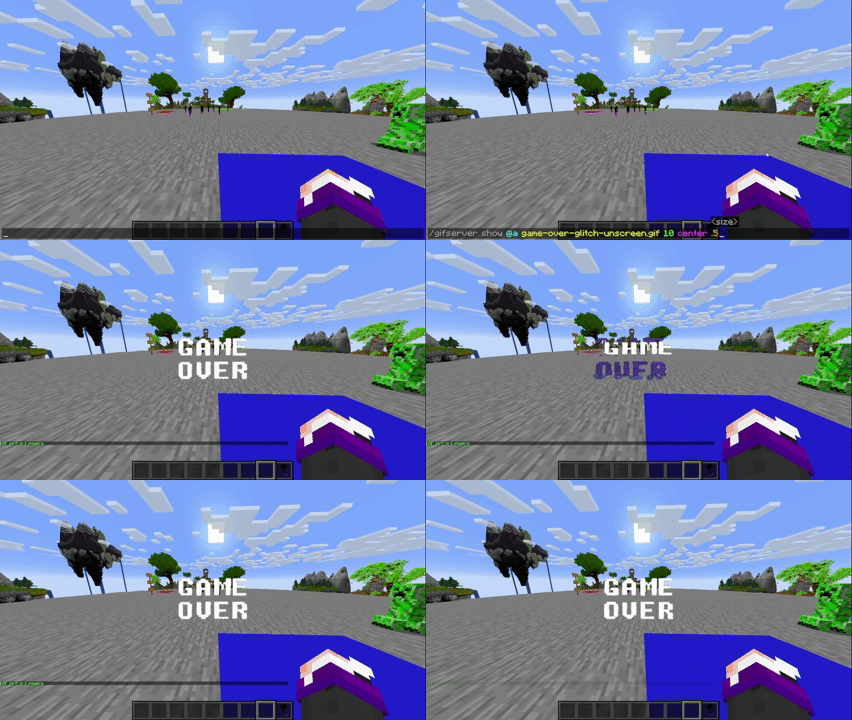
- # GIF, PNG, JPG or JPEG sent to players (plugin):
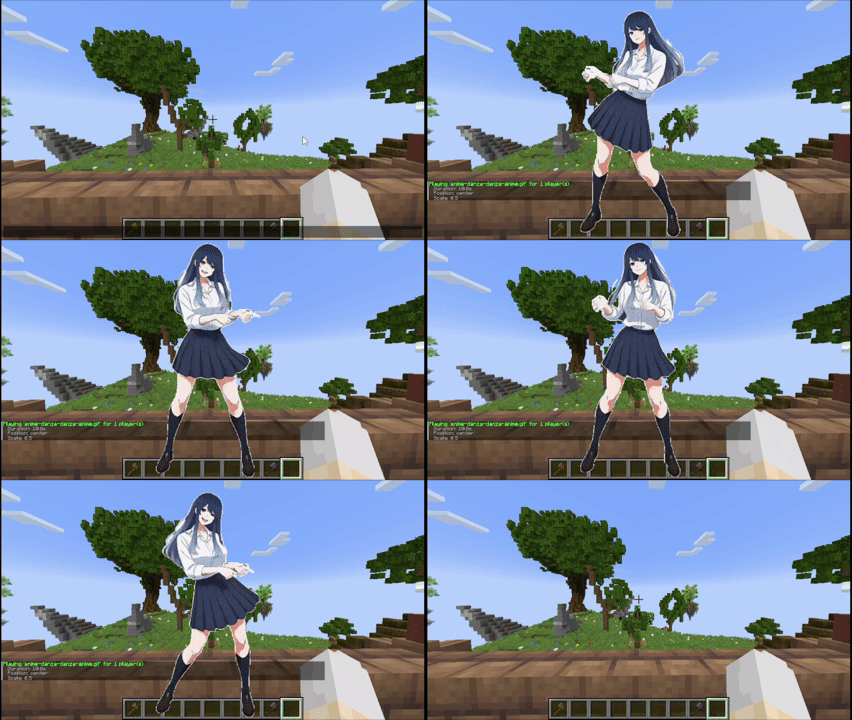
---
# Tutorial
## Placing files (Client and server)
**Client folder:** `.minecraft/config/animatedframes/media/`
**Server folder with the mod:** `config/animatedframes/media/`
**Server folder with the plugin:** `plugins/AnimatedFramesPL/media/`
**Steps:**
1. Copy your GIF, PNG, JPG, JPEG or MP4 file into the appropriate media folder:
- Client folder for `/mediac show` or `/medias showlocal`.
- Server folder for `/medias show`.
2. Make sure the file has the correct extension (`.gif`, `.png`, `.jpg`, `.jpeg`, `.mp4`).
3. Display it in-game:
- Local (only you): `/mediac show sunny.gif 10 center 1.0 80`
- Send a server file to others: `/medias show @a sunny.gif 15 center 1.0 80`
- Play files already installed on players' clients: `/medias showlocal @a sunny.gif 15 center 1.0 80`
**Notes:**
- `/mediac show` → only visible to you
- `/medias show` → transfers a server file to selected players — **they need the mod and WaterMedia, but not the file beforehand**
- `/medias showlocal` → uses each player's local file — **they need the mod, WaterMedia and the file in their client folder**
- **Updating from 1.6.2:** replace `/medias show` with `/medias showlocal` if you want to keep using files already installed on players' computers
- Filenames with spaces must use double quotes: `/medias show @a "welcome video.mp4" 10 center 1.0 80`
- Large files may take some time to transfer before playback begins
- Check chat or logs if a file fails to load
- Use `/mediac list` to see your local files and `/medias list` to see server files
- Duration is measured in seconds; `0` means no command-imposed time limit. Videos still stop when they reach the end
- Scale range: `0.05–10` (default: `1.0`)
- Volume range: `0–100` (default: `80`)
- Media stops automatically when you disconnect
## Available positions (10 options)
`center` `topleft` `topright` `bottomleft` `bottomright` `topcenter` `bottomcenter` `leftcenter` `rightcenter` `fullscreen`
> **fullscreen** — fills the entire screen for videos while maintaining their aspect ratio, cropping the edges when necessary. Omit the scale and enter the volume directly after `fullscreen`. Example: `/medias show @a intro.mp4 0 fullscreen 80`
---
## Credits
- Created by **[@SunnyAim_](https://x.com/SunnyAim_)**
- 🎬 MP4 integration made possible with the help of [@SoyKatto1](https://x.com/SoyKatto1)
- Support: Contact [@SunnyAim_](https://x.com/SunnyAim_) for help or questions.
---